Feed on
Posts
Comments

Hacking a Peeple

A knock on your door

A common tactic for a burglary or casing a home is to send somebody unconcealed to the front door posing as a survey taker, lost pet owner, or some such and seeing if anyone is at home. If nobody answers it’s probably a sign that there’s nobody around and proceed.

Outdoor video cameras on the front porch can help, but they’re often mounted so high or at such a weird angle that it’s hard to get a good image to identify the person by their face. If you live in an apartment you might not even be able to put up an outdoor camera. Ever watch the evening news and hear “Police need help identifying this person, do you recognize their clothes or car”? I think the best solution to improve this is to aim a camera right in their face.

There are some solutions such as a “video doorbell” which has an exterior camera mounted lower, but the problem is that they are usually shiny and hi-tech looking, drawing attention to itself and it can easily be smashed. Ideally there would be nothing conspicuous from the outside and tamper proof. This is where an indoor door peephole camera comes in. It’s naturally face height and about as direct as you can get.

Ideally there would be a camera unit to mount on the door, have an LCD for local viewing (or at least easily removable if you actually want to look out), use wi-fi connectivity, and stream video to an existing security camera NVR. Surprisingly nothing like this exists. There are some video peephole viewers but they either don’t stream video, no wi-fi, use proprietary wireless, or they’re outside and easily bashed in. Or, you can buy just a peephole camera from Alibaba, but you have to build everything else. Axis makes some excellent pinhole IP cameras that could do the job, but they’re easily $300-$400. I tried building my own thing with a Raspberry Pi+camera module+3” LCD, but at least with the Pi2 the video lagged badly.

I’ve threatened to just find a cheap Android phone and stick it to my door. This gets me LCD, camera, wi-fi, streaming, at the price of a power cable taped to my door.

Enter the Peeple

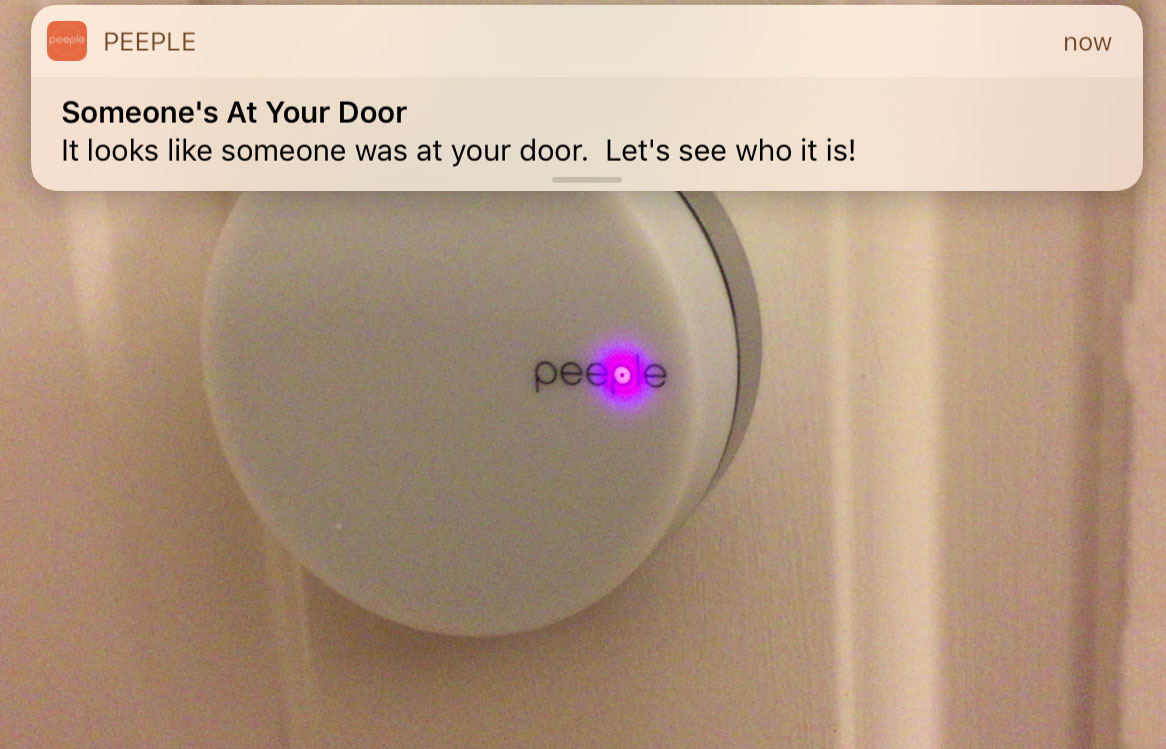
I ran across the Peeple on Kickstarter a couple of years ago and it seemed promising so I chipped for it. It claimed to be a door mounted, wi-fi capable, battery operated camera. Whenever somebody knocked on the door, it would record video and send it to your phone. The downside was that it required “the cloud” to operate, there was no way to send video to my NVR (which already does iOS notifications). It didn’t have an LCD either, but it turned out to be easily removable so I’m not complaining too much.

After two years it finally arrived at my desk. And of course the first thing I did was tear it apart and sniffing network traffic to see what it did.

Sample video through a dusty peephole

Sample video through a dusty peephole

Network traffic

I found several surprising things when I fired up tcpdump and started looking at its network traffic. (I know, I shouldn’t be surprised at an IoT thing). For one it speaks plaintext HTTP, which is terrible for a IoT thing that speaks to the cloud, but great for me because it means I can see what it’s doing.
1) When motion is detected the radio and networking fire up, and it immediately sends a DHCP request.

2) It then sends a DNS request to 8.8.8.8 for api.peeple.io, so it clearly disregards my DNS servers offered up in the DHCP reply and has Google’s resolver hard-coded. ugh.

 192.168.130.37.55551 > 8.8.8.8.53: 41216+ A? api.peeple.io. (31)
IP (tos 0x20, ttl 57, id 5688, offset 0, flags [none], proto UDP (17), length 91)
 8.8.8.8.53 > 192.168.130.37.55551: 41216 2/0/0 api.peeple.io. A 52.27.66.175, api.peeple.io. A 52.41.133.189 (63)

3) Next, it fires off a HTTP GET request in plain text to /device/v1/knock/begin.
It sends some sort of hashed or encoded string as an X-Peeple: header, which is presumably based on my unit’s serial number or some other unique identifier. It’s not base64, so I suspect a hash. The server returns a UNIX timestamp and my phone gets an iOS notification.

IP 192.168.130.37.23220 > 52.27.66.175.80: Flags [P.], seq 1:130, ack 1, win 5840, length 129: HTTP: GET /device/v1/knock/begin HTTP/1.1
E..............%4.B.Z..P...p,.7.P.......GET /device/v1/knock/begin HTTP/1.1
Host: api.peeple.io
User-Agent: Peeple
Accept: */*
X-Peeple: ycQfCce47hAwk...

IP 52.27.66.175.80 > 192.168.130.37.23220: Flags [.], ack 130, win 18760, length 0
E .(..@.+..54.B....%.PZ.,.7.....P.IH.b..
IP 52.27.66.175.80 > 192.168.130.37.23220: Flags [P.], seq 1:204, ack 130, win 18760, length 203: HTTP: HTTP/1.1 200 OK
E ....@.+..i4.B....%.PZ.,.7.....P.IH_...HTTP/1.1 200 OK
Server: nginx/1.8.1
Date: Tue, 31 Jan 2017 08:52:40 GMT
Content-Type: text/html; charset=utf-8
Content-Length: 10
Connection: keep-alive
Access-Control-Allow-Origin: *

1485852760

Amusingly I can craft a response by hand and send a barrage of notifications to my phone without any extra authentication:

[bwann@raptor ~]$ GET -H "X-Peeple: ycQfCce47hAwk..." -H "User-Agent: Peeple" http://api.peeple.io/device/v1/knock/begin
1485892854

The server returns a UNIX timestamp of the current time.

4) After recording a few seconds of video, it does an HTTP POST request to upload the video file to /device/v1/knock/movie/<unix timestamp>. Ah hah! The payload is about 500k (466,259 bytes here)

IP 192.168.130.37.23221 > 52.27.66.175.80: Flags [P.], seq 1:166, ack 1, win 5840, length 165: HTTP: POST /device/v1/knock/movie/1485852760 HTTP/1.1
E..............%4.B.Z..P...r.=.\P...v...POST /device/v1/knock/movie/1485852760 HTTP/1.1
Host: api.peeple.io
User-Agent: Peeple
Accept: */*
Content-Length: 466259
X-Peeple: ycQfCce47hAwk...

IP 192.168.130.37.23221 > 52.27.66.175.80: Flags [P.], seq 166:1626, ack 1, win 5840, length 1460: HTTP
0x0000: 4500 05dc 000e 0000 8006 7b76 c0a8 8225 E.........{v...%
0x0010: 341b 42af 5ab5 0050 0000 1a17 fc3d d65c 4.B.Z..P.....=.\
0x0020: 5018 16d0 5f78 0000 e145 0000 b126 0000 P..._x...E...&..
0x0030: ffd8 ffe0 0010 4a46 4946 0001 0101 0000 ......JFIF......
0x0040: 0000 0000 ffdb 0043 0008 0606 0706 0508 .......C........

5) After uploading the video, it also sends a log file via HTTP POST to /device/v1/knock/log/<unix timestamp>. This revealed more interesting information about the unit.

IP 192.168.130.37.23222 > 52.27.66.175.80: Flags [P.], seq 1:163, ack 1, win 5840, length 162: HTTP: POST /device/v1/knock/log/1485852760 HTTP/1.1
E....j.....,...%4.B.Z..P......P.P....g..POST /device/v1/knock/log/1485852760 HTTP/1.1
Host: api.peeple.io
User-Agent: Peeple
Accept: */*
Content-Length: 11929
X-Peeple: ycQfCce47hAwk...

[....]

sys 390 log_start:
inf 390 user_init: Peeple Firmware Started
.inf 390 user_init: -----------------------
.inf 390 user_init: version 1611152040
.inf 391 user_init: free heap 28652
.inf 394 user_init: rboot.mode 0
.inf 396 user_init: rboot.current_rom 1
.inf 399 user_init: rboot.previous_rom 0
.inf 402 user_init: rboot.fw_updated 0
.inf 405 user_init: rboot.is_first_boot 0
.inf 408 user_init: rboot.boot_attempts 0
.inf 411 user_init: rboot.rom[0] 0x11000
.inf 414 user_init: rboot.rom[1] 0x89000
.inf 417 user_init: rboot.rom[2] 0x0
.inf 420 user_init: rboot.rom[3] 0x0
.inf 423 configLoad: 652 bytes @ 0x1800
.inf 426 configLoad: index:0 ssid:XXXXXXXXXXX
.inf 429 configLoad: index:1 ssid:
.inf 432 configLoad: index:2 ssid:
.inf 435 configLoad: index:3 ssid:
.inf 438 configLoad: activeStation:0
.inf 441 configLoad: waitingForHandOff:0
.inf 444 heapReport: 28652
.inf 458 logResetInfo: cause: 6 (sys reset)
.inf 460 internetInit:
.inf 462 webServerInit: starting
.inf 465 webServerAddRequestHandler: url:[/peeple.log] -> 0x402b2420
.inf 474 webServerAddRequestHandler: url:[/crash] -> 0x402cc784
.inf 475 webClientInit: device:ycQfCce47hAwk....
.inf 479 otaUpdateInit: start
.inf 481 webServerAddRequestHandler: url:[/ota/status] -> 0x402b35e8
.inf 487 webServerAddRequestHandler: url:[/ota/update] -> 0x402b3640
.inf 493 webServerAddRequestHandler: url:[/reboot] -> 0x402b36b8
.inf 498 webServerAddRequestHandler: url:[/sleep] -> 0x402b35c0
.inf 503 wifiInit: starting
.inf 511 wifiSetup: ssid:Peeple XXXXXXX password:XXXXXXXXX
.inf 1401 webServerAddRequestHandler: url:[/wifi/status] -> 0x402b5a14
.inf 1401 webServerAddRequestHandler: url:[/wifi/scan] -> 0x402b5968
.inf 1402 webServerAddRequestHandler: url:[/wifi/connect] -> 0x402b5ebc
.inf 1408 webServerAddRequestHandler: url:[/wifi/forget] -> 0x402b5934
.inf 1414 webServerAddRequestHandler: url:[/wifi/reset] -> 0x402b58e4
.inf 1420 wifiTaskImpl: connect to ssid:XXXXXXXXXXX
.inf 1426 wifiTaskImpl: pending ssid:XXXXXXXXXXXXX
.inf 1428 cameraInit:
.inf 1429 webServerAddRequestHandler: url:[/camera/settings] -> 0x402b393c
.inf 1444 cameraTaskImpl: starting:CAMERA_MODE_KNOCK
.inf 1444 webServerAddRequestHandler: url:[/config/createHandOffKey] -> 0x402b6560
.err 1584 cameraReadBytes: timeout in RD_CHIP_ID (100)
.inf 1584 cameraTaskImpl: failed to get chipID, assuming baudrate is already set
.inf 1585 cameraTaskImpl: chipID:0x10006431
.inf 2328 doCameraModeKnock: we have a knock!
.inf 4435 onWifiStateChange: 0x0:EVENT_STAMODE_CONNECTED / STATION_CONNECTING
.inf 5406 heapReport: 15780
.inf 7422 onWifiStateChange: 0x0:EVENT_STAMODE_GOT_IP / STATION_GOT_IP
.inf 20252 doCameraModeKnock: numPictures:33 movieSize:466259 duration:17889
.inf 20252 doCameraModeKnock: (attempt 1) start new knock
.inf 20393 heapReport: 15316
.inf 21388 doCameraModeKnock: (attempt 1) upload 466259 bytes for knock 1485852760
.inf 21504 frameDataGenerator: 2920/466259
...

One bad thing I noticed is that it sends my wireless SSID to Peeple in PLAIN TEXT. While not an outright security hole, it’s an information leak that’s certainly none of their business.
Interestingly, lines 465-1414 told me the unit actually had an embedded webserver running. While the until was active I was able to go to http://192.168.130.37/peeple.log and fetch the same file that was being uploaded.

6) Finally it does an HTTP GET of /device/v1/firmware/version/live, presumably to check if there’s any new firmware to download. The server returns an integer, which in this case matches version in line 390 of the log. Because I haven’t seen a firmware update yet, I don’t know what it does after this but assuming it would do another GET to fetch it.
Video format

It took me a while to figure out what video format this was, Wireshark wasn’t able to detect it. The JFIF plaintext and FF E0 00 10 4A was a tip off that it was some sort of JPEG video. After carefully extracting the video payload from Wireshark and removing the HTTP header, I fed it to VLC and it was clueless too.
Somebody later pointed out to me that FF D8 FF E0 was Motion JPEG. Sure enough after tweaking my process to include a few extra bytes I was able to extract the full video from the tcpdump! It’s about 15 seconds (15 frames) of 640×480 video. This means it’s not some obscure video format, and as long as I can intercept the traffic I can work with it.

Video interception

Getting the video directly instead of going to the cloud should just be a matter of pretending to be api.peeple.io and implementing my own endpoint to handle the HTTP POST and save the movie. But because it has a hardcoded DNS server, this isn’t so trivial.

So far I’ve done this:
  • Bound 8.8.8.8 to a home Linux box
  • Configured BIND to listen on 8.8.8.8 and be authoritative for peeple.io, returning my own IP address for api.peeple.io.
  • Configure a static route on my home router to send traffic destine to 8.8.8.8 to my Linux box.
  • Whip up some Apache ScriptAlias directives to point to a python CGI handler

I haven’t finished writing scripts to spoof the HTTP GET/POST requests, but so far the unit happily goes along with my traffic interception. I see the requests landing in my Apache logs. Once I do this I can save it to my NVR or whatever and be cloud free! Alternatively I could send it to both myself and Peeple, preserving original app functionality.

I may just leave the 8.8.8.8 interception in place permanently, just to see what hits it. I already run local caching DNS servers that will always be lower latency than going to the Internet. A few friends have already reported their random Google/Android devices also ignore their local DNS and go out to 8.8.8.8 too, so I’m not alone.

Hardware

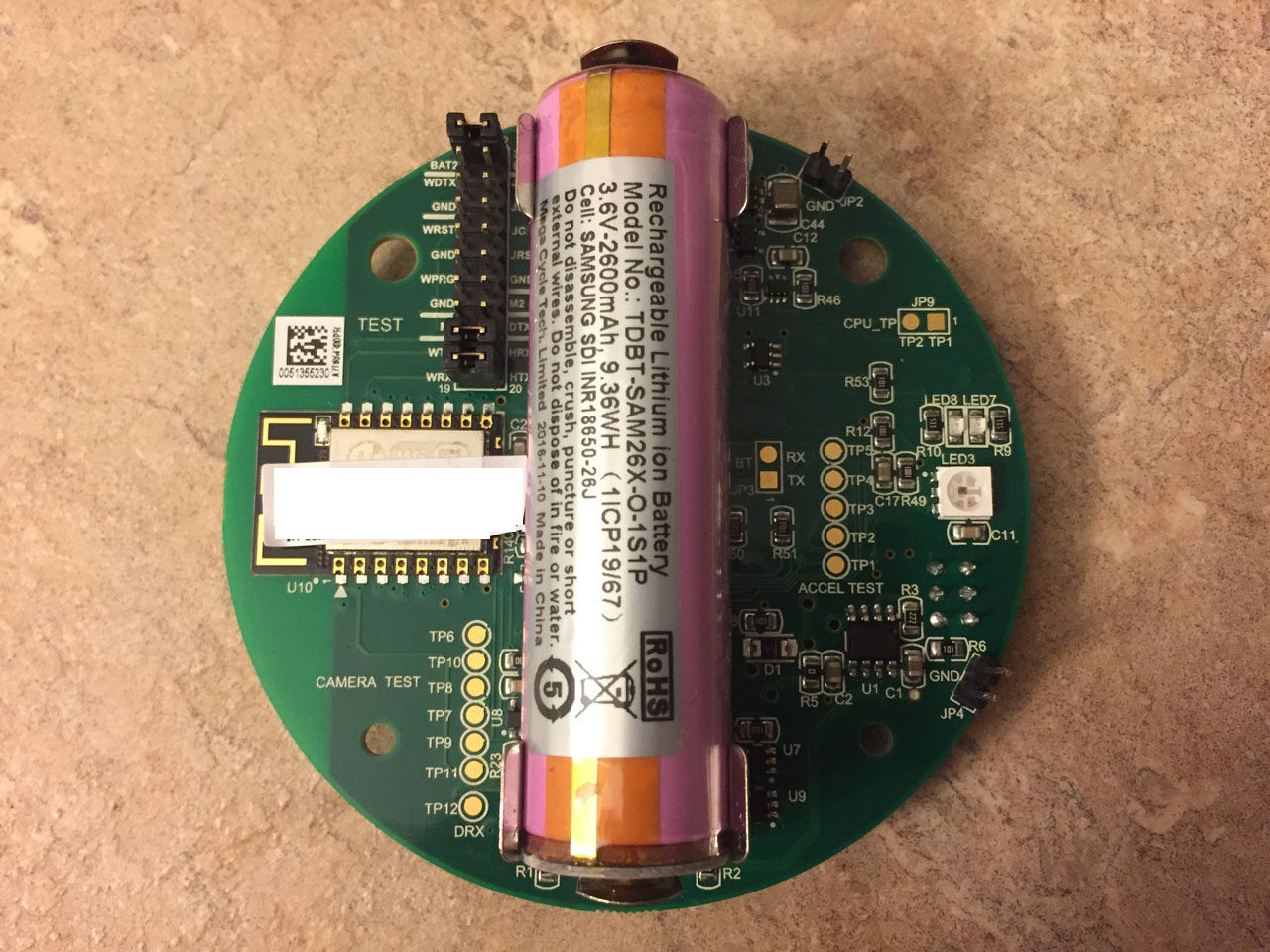
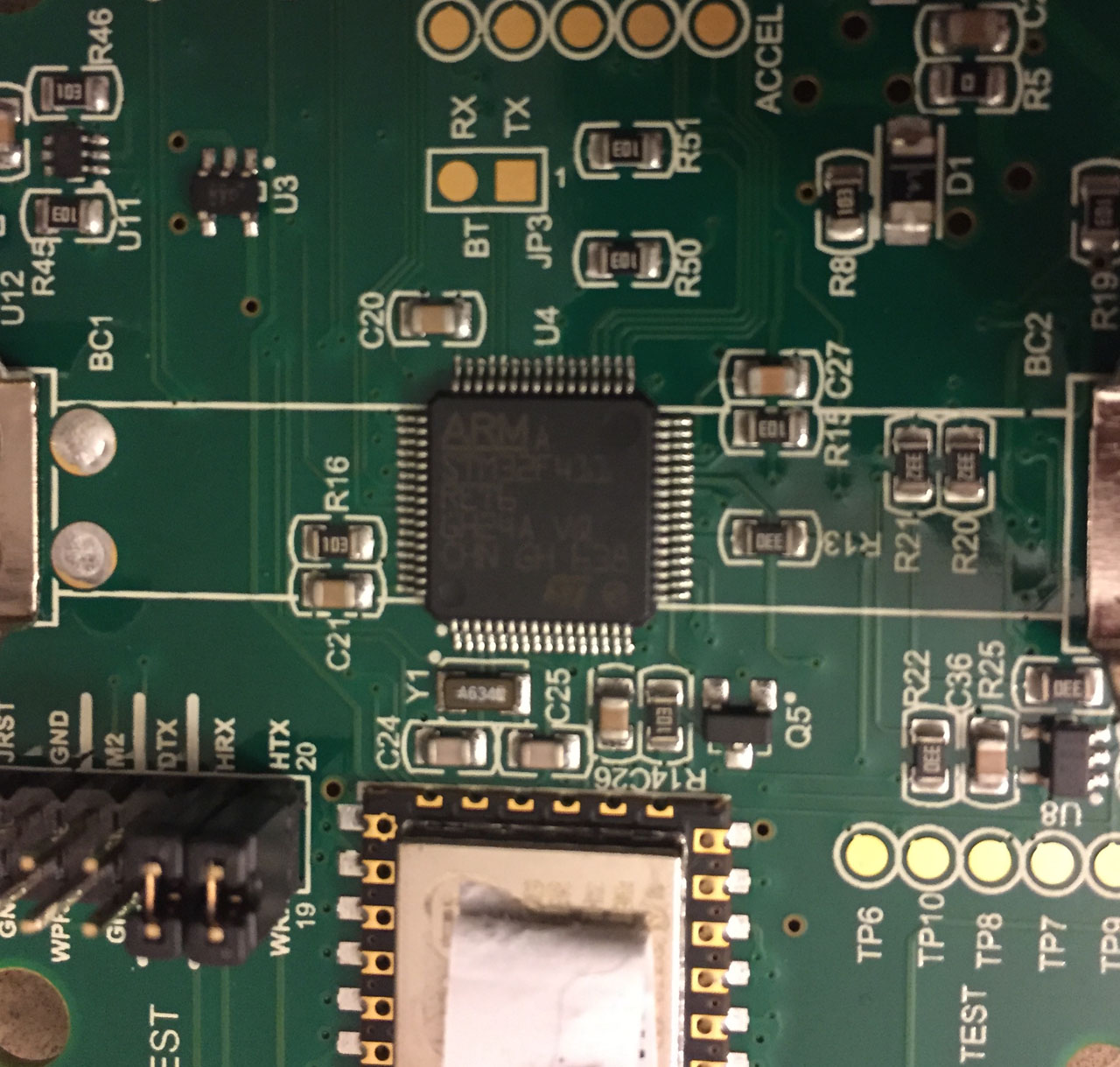
There’s not a whole lot to this. Interesting all the pins and solder pads are well labeled, quite likely to aid with troubleshooting because it’s fresh out of a Kickstarter. The unit is about 3.5” in diameter and an inch thick. Right in the middle is a big lithium-ion battery.
For wi-fi connectivity, it appears to use an off-the-shelf ESP-12f module. This is over on the left side under the serial number sticker. I’m not sure how it receives the video data, it supports SPI, I2C, and GPIO. It has an embedded TCP/IP stack so that likely explains why it can’t do HTTPS (and certainly no IPv6) :(


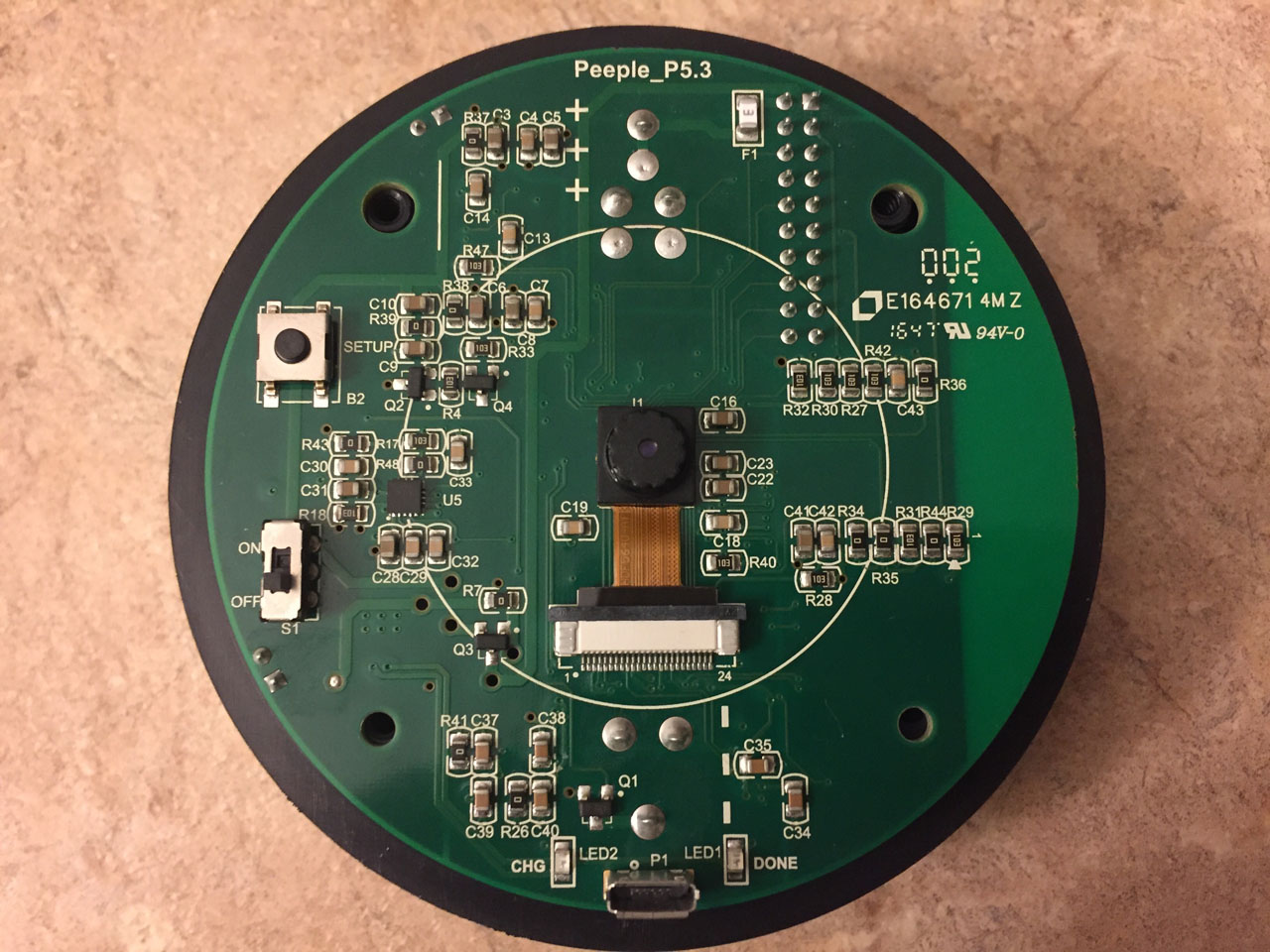
There’s not much on the door-facing side, the camera, mini-USB port for charging, on/off and reset switches.


Underneath the battery is an ARM Cortex-M4 SoC, an STM32F411RE chip. AFAIK this is just a microcontroller, no embedded OS running. There look like there may be a UART exposed on the board, I need to play with them to see what I can discover.

ARM Cortex-M4

ARM Cortex-M4


Out of the box I already had one problem where after unplugging the charging cable the unit would not turn on. After I took it apart I figured out the battery connector was barely making contact with the battery while in the vertical position. I bent them inwards a bit and now it works fine. I emailed the inventor about it, he said he’s seen it before and in the latest email update to kickstarters he said they’d replace them if anyone else encountered this problem.

Overall it’s a neat little device, but not the perfect thing I wanted. The fact it uses a magnet to mount to the door plate is nice, so it’s easy to remove and look outside. Long battery life is nice for what it is, although personally I’d be fine settling with running a wire along the hinge side of the door for power if it got me live video all the time. I have to subvert networking to get it to send video to me, there’s no way to integrate a doorbell with it.

At least it’s not completely security stupid like other IoT devices which do things like leave your home network exposed to an alternative SSID, sending wi-fi passwords over the clear, have default logins (you can’t log in to this afaik), or turn into a spam bot.

My colleague Matthew gave a presentation about bare metal provisioning servers at Facebook on IPv6-only networks at SREcon last month. He discusses the entire process from why we went v6-only, selection of DHCP server and network boot loaders, through installing CentOS on hosts, and all of the gotchas along the way. By audience survey it doesn’t seem like many people are doing v6 provisioning yet, I suspect many people are still hamstrung by v4-only infrastructure like older PXE ROMs. He also covers the work I’ve done on Anaconda to improve IPv6 reliability which I’ve written about a few times here before.

Link: https://www.usenix.org/conference/srecon16/program/presentation/almond

Supermicro Storage and network option ROM settings

Storage and network option ROM settings

It turns out my SuperMicro A1SAI boards made a fucking liar out of me. I bitched and moaned it was 2016 and they didn’t support UEFI PXE booting despite supporting UEFI, but they do. I just didn’t know where to look. Under “PCIe/PCI/PNP Configuration” in boot setup, the “Launch Storage OpROM Policy” and “Launch Network OpROM Policy” options are by default set to “Legacy”. These are what enable legacy BIOS vs UEFI OS booting and PXE booting options. (“Option ROM policies”). Here PXE booting with IPv6 and IPv4 can be enabled with the on-board Ethernet interfaces.

Set them to “UEFI”, reboot, go back into boot configuration again and now under the “Boot” menu there will be a whole new set of boot options including UEFI network booting. Now you can install a UEFI native OS over the network with v6 or v4 without relying on a NIC’s own option ROM to provide PXE support. (My boards have quad on-board interfaces so I wind up with 10 boot options)

supermicro-uefi-2

oh look! UEFI IP6 boot options

Once the OS is installed in a UEFI native way, we can poke at things with efibootmgr and life is grand.

[root@basic10 ~]# efibootmgr
BootCurrent: 0000
Timeout: 1 seconds
BootOrder: 0006,0007,0000
Boot0000* CentOS
Boot0003* UEFI: Built-in EFI Shell
Boot0004* Hard Drive
Boot0006* UEFI: IP4 Intel(R) Ethernet Connection I354
Boot0007* UEFI: IP6 Intel(R) Ethernet Connection I354
Boot0008* UEFI: IP4 Intel(R) Ethernet Connection I354
Boot0009* UEFI: IP6 Intel(R) Ethernet Connection I354
Boot000A* UEFI: IP4 Intel(R) Ethernet Connection I354
Boot000B* UEFI: IP6 Intel(R) Ethernet Connection I354
Boot000C* UEFI: IP4 Intel(R) Ethernet Connection I354
Boot000D* UEFI: IP6 Intel(R) Ethernet Connection I354

[root@basic10 ~]# ls -l /boot/efi/EFI/centos/
total 5784
-rwx------ 1 root root     128 Dec  7 05:19 BOOT.CSV
drwx------ 2 root root    4096 May  2 22:33 fonts
-rwx------ 1 root root 1009536 Jan  5 09:51 gcdx64.efi
-rwx------ 1 root root    4349 May  2 22:38 grub.cfg
-rwx------ 1 root root    1024 May  2 22:38 grubenv
-rwx------ 1 root root 1009536 Jan  5 09:51 grubx64.efi
-rwx------ 1 root root 1283952 Dec  7 05:19 MokManager.efi
-rwx------ 1 root root 1291512 Dec  7 05:19 shim-centos.efi
-rwx------ 1 root root 1296176 Dec  7 05:19 shim.efi

mellanox-flexboot-ipv6

If you have Mellanox ConnectX-3 or ConnectX-4 NICs in your servers, I discovered it’s possible to do IPv6 OS installations via PXE. FlexBoot is their on-board PXE implementation that ships on their NICs and it’s based on iPXE. It turns out that as of FlexBoot version 3.4.718 from January 2016 they’ve added beta IPv6 support. If you have a motherboard that doesn’t support UEFI IPv6 PXE, you can configure your system to boot FlexBoot from the expansion ROM instead. This will let you do netboots and OS installations over v6 natively and eliminates the need for chain loading or using PXELINUX.

The catch is that the option is off by default and you must enter the FlexBoot menu during boot (Ctrl-B) to enable it. The v6 beta support addition was mentioned in the FlexBoot release notes, but directions on how to actually enable it was buried in the PreBoot User Manual. sigh.

mellanox-flexboot-release-notes

FlexBoot 3.4.718 release notes


FlexBoot (http://mellanox.com) 04:00.0 3D00 PCI3.00 PnP PMM+74250020+74269020 C800
Press Ctrl-B to configure FlexBoot v3.4.718 (PCI 04:00.0)...

mellanox-flexboot-system-setup

FlexBoot system setup screen


mellanox-flexboot-net0-setup

FlexBoot net0 settings


mellanox-flexboot-ipv6

FlexBoot net0 NIC configuration, IPv4/IPv6 support

The NIC setting supports IPv4, IPv4+IPv6, and IPv6-only configurations. Unfortunately there doesn’t seem to be a way to configure this from an OS to automate turning this option on. The FlexBoot source code is available from Mellanox so maybe you can compile it with v6 support turned on and burn it to NICs. Hopefully after it comes out of beta this option will be on by default.

Note: When both v4 and v6 are configured, it sends out both a DHCPv4 request and a v6 router solicitation at the same time on boot. If you’re v6 only or your v4 DHCP server doesn’t respond it takes 10-20 seconds to eventually time out on v4 and proceed with the v6 address it gets.

That’s the tl;dr version of enabling v6 on the NIC.

Prerequisites

Anyways, for actually kickstart installing CentOS/Fedora/RHEL with this a few things need to happen. There’s a lot of options and ways to do this, depending how much of an existing kickstart server setup you have and how much IPv6-ready infrastructure you have already running.

For example, with iPXE/FlexBoot you can fetch kernels and ramdisks over HTTP, TFTP, or NFS, and can also download scripts to do fancy things before booting or downloading things.

At a minimum, you’ll need to configure at least these things:

  • DHCPv6 server: serve up the bootfile-url to FlexBoot/iPXE. This is equivalent to the next-server and filename options in DHCPv4.
  • HTTP or TFTP server to serve up the iPXE configuration script.
  • HTTP, TFTP, or NFS to serve up the kernel, ramdisk (initrd), and your kickstart configuration.
  • Bootloader order to do network booting first, then fall through to disk.

For purposes of this post I’m going to assume you already have a working kickstart setup, I won’t go into details of how to set one up from scratch. I will describe what’s needed to an extend an existing kickstart setup to do IPv6 installs with iPXE/FlexBoot over HTTP. Hopefully you can adapt this for your environment.

Most of this is applicable for all sorts of IPv6 PXE installations, not just Mellanox FlexBoot and iPXE based things.

IPv6 networking on the LAN

When you configure your router, layer3 top-of-rack switch, or a box running radvd, you’ll need to configure router advertisements with the “Other” and “Managed” config flags turned on.

Managed” will tell the target host to request its IPv6 address from a DHCPv6 server instead of using SLAAC. In a pinch you can get away with installing CentOS using SLAAC, you just won’t easily know what address it’s going to use compared to a DHCP reservation.

Other” is the important bit, as it tells the target host that (non-address related) configuration information is available from the DHCPv6 server. In the case of Mellanox NICs, they’re going to request the DNS servers, DNS search list, option 59 (boot file URL), and option 60 (boot file parameters, not used here).

Some hosts may or may not support getting DNS servers and search list from a router advertisement (RDNSS and DNSSL). Best bet is to use DHCPv6 for these. You’ll need DHCP anyways to serve up the boot file URL so FlexBoot knows where to fetch its configuration.

DHCPv6 configuration

I still use the ISC DHCP server (someday I’ll switch to the KEA DHCP server, you should too). At a minimum you’ll need to set these options in your /etc/dhcp/dhcpd6.conf configuration, something like this:

option dhcp6.name-servers 2401:beef:11:a53, 2401:beef:11:b53;
option dhcp6.domain-search "wann.net";
option dhcp6.user-class code 15 = string;
option dhcp6.bootfile-url code 59 = string;
option dhcp6.client-arch-type code 61 = array of unsigned integer 16;

if option dhcp6.client-arch-type = 00:07 {
  # Fetch efi shim over tftp if uefi booting
  option dhcp6.bootfile-url "bootx64.efi";
} else if exists dhcp6.user-class and
          substring(option dhcp6.user-class, 2, 4) = "iPXE" {
  option dhcp6.bootfile-url "http://[2401::beef:20::20]/ipxe/ipxe-${net0/mac}.cfg";
}

preferred-lifetime 604800;
option dhcp-renewal-time 3600;
option dhcp-rebinding-time 7200;
allow leasequery;

subnet6 2001:470:d00d:ddff::/64 {
  range6 2001:470:d00d:ddff::f00 2001:470:d00d:ddff::fff;

  # host reservations here
}

In this example if we notice the user-class in the DHCP solicit message is from iPXE, we’ll serve up a bootfile-url with a HTTP URL to an iPXE script. This is the same thing as returning next-server and filename in a DHCPv4 response. Other options configured here means we’ll return DNS servers, the domain search list, and a v6 address from a pool. If the host did a UEFI boot we’ll serve up the standard bootx64.efi shim over TFTP.

The bootfile-url can be anything iPXE supports, such as a HTTP URL or just a filename for TFTP downloading.

(I’m cheating here and using a pool instead of static reservations or SLAAC.)

A rant on DHCP client identifiers for static reservations: the options available in DHCPv6 are a pain in the ass. In v4 land things were simple, you could map the NIC MAC address to an IP address in the dhcp server. For newer versions of iPXE they use “DUID-UUID” (from RFC6355) which shows up as “client-ID type 4”.

DUID-UUID is a terrible choice for servers.

There’s no way to predict what the DUID-UUID will be beforehand, preventing you from pre-populating your inventory databases, nothing that links it to the physical MAC address, and impossible to do static DHCP reservations.

The UUID is generated by magic and does not contain any sort of MAC information you could possibly parse out. I don’t have a good answer on how to get the DUID-UUID ahead of time to configure in your DHCPv6 server configuration and this makes me angry.

Example DHCP6 solicit request from a Mellanox NIC with type 4 client identifier:

IP6 (hlim 255, next-header UDP (17) payload length: 78) fe80::202:c9ff:fe45:2620.546 > ff02::1:2.547: [udp sum ok]
  dhcp6 solicit (xid=fd3d3 (client-ID type 4)
                (IA_NA IAID:4284751403 T1:0 T2:0)
                (option-request DNS-server DNS-search-list opt_59 opt_60)
                (user-class)
                (elapsed-time 0))

DUID-LL or even DUID-LLT (both of which have the NIC’s link-local address) is much better for doing static reservations.

If you have the MAC of your system in your inventory system, you can configure the system->IP address mapping easily. Even though RFC3315 says you “must not”, you can at least parse out the MAC address and have a reasonable MAC->host mapping. DHCP servers are starting to support this even though it’s contrary to the RFCs.

What if you replace the NIC in your server? Well, your inventory database should represent this fact and hold its new MAC address accordingly.

iPXE configuration

The NIC will download an iPXE configuration file and you can do all sorts of scripting inside it. This is pretty powerful and you can do all sorts of clever things such as booting over NFS, iSCSI, AoE, etc, but I’m going to do dead simple CentOS kickstart booting over HTTP.

One thing in particular I do is return a static URL to the host: http://[2401::beef:20::20]/ipxe/ipxe-${net0/mac}.cfg. This way I never have to change my DHCPv6 configuration or have any host-dependent config, it will work for any new host that comes along.

The work happens on the webserver, where it will serve up a file from disk with the host MAC address in the name, e.g.  http://[2401::beef:20::20]/ipxe/ipxe-00:02:c9:45:26:20.cfg. If that file exists, iPXE will start interpreting the output. If it doesn’t exist, iPXE will exit.

(At large scale you’ll very likely want some dynamic script that generates these responses on the fly rather than creating them on disk. You can change up the URL and parameters however you want.)

The contents of the ipxe-*.cfg script looks like this:

#!ipxe
echo ****
echo **** iPXE configuration
echo ****
kernel http://[2401::beef:20::20]/dist/images/centos/7/x86_64/vmlinuz noipv4 ip=dhcp6 console=tty0 console=ttyS1,115200n8 BOOTIF=${net0/mac} biosdevname=0 net.ifnames=0 inst.text inst.selinux=0 inst.sshd inst.ks=http://.../ks.cfg
initrd http://[2401::beef:20::20]/dist/images/centos/7/x86_64/initrd.img 
boot

It’s all standard kernel command line options like you’d have in a pxelinux.cfg config file. Configure URLs to suite your setup and paths to your kernel (vmlinuz) and ramdisk (initrd.img).

I will say make absolutely sure the first line is a hash bang-ipxe and not hash bang-pxe (the “i” is easy to overlook!), nor a empty line at the top. This completely breaks iPXE in a non-obvious way.

Toggle booting OS from disk or doing kickstart install

In the above example, iPXE will always try to fetch the configuration file on boot. If it exists then the host will do a kickstart installation. If it doesn’t exist, iPXE will exist and fall through to the OS on disk (if the boot order is setup correctly).

(Some people like having fancy boot menus where they select an option to install an OS or boot from local disk. I’m not one of those people and consider it a failure if I ever have to touch console on a server, even for installs.)

Another option for enabling/disabling kickstart would be suppressing the DHCP response so that only a host intended to be net-installed would get a DHCP answer, otherwise it falls through to local disk. This is DHCP-server specific, you’re on your own, but it is a great idea.

The end result: actually kickstarting CentOS

When it’s all said and done, it looks like this on console when you do an netboot/install with FlexBoot completely over IPv6 with HTTP:

FlexBoot v3.4.718
FlexBoot http://mellanox.com
Features: DNS HTTP iSCSI TFTP VLAN ELF MBOOT PXE bzImage COMBOOT PXEXT
net0: 00:02:c9:45:26:20
Using ConnectX-3 on PCI04:00.0 (open)
  [Link:down, TX:0 TXE:0 RX:0 RXE:0]
  [Link status: Unknown (http://ipxe.org/1a086101)]
Waiting for link-up on net0..... ok
Configuring (net0 00:02:c9:45:26:20)... ok
net0: fe80::202:c9ff:fe45:2620/64
net0: 2001:470:d00d:ddff:202:c9ff:fe45:2620/64 gw fe80::202:c9ff:fe45:2641
net1: fe80::202:c9ff:fe45:2621/64 (inaccessible)
Filename: http://[2401::beef:20::20]/ipxe/ipxe-00:02:c9:45:26:20.cfg
http://[2401::beef:20::20]/ipxe/ipxe-00%3A02%3Ac9%3A45%3A26%3A20.cfg... ok
ipxe-00:02:c9:45:26:20.cfg : 487 bytes [script]
****
**** iPXE configuration
****
http://[2401::beef:20::20]/dist/images/centos/7/x86_64/vmlinuz... ok
http://[2401::beef:20::20]/dist/images/centos/7/x86_64/initrd.img... 99%

[    0.000000] Initializing cgroup subsys cpuset
[    0.000000] Initializing cgroup subsys cpu
[    0.000000] Initializing cgroup subsys cpuacct
[    0.000000] Linux version 3.10.0-327.el7.x86_64 (builder@kbuilder.dev.centos.org) (gcc version 4.8.3 20140911 (Red Hat 4.8.3-9) (GCC) ) #1 SMP Thu Nov 19 22:10:57 UTC 2015
[    0.000000] Command line: console=tty0 console=ttyS1,115200n8 biosdevname=0 net.ifnames=0 inst.text inst.selinux=0 inst.sshd inst.ks=http://2401::beef:20::20/ks.cfg
...

asrock-aptio-uefi

Wooo UEFI IPv6 PXE

I wanted a new Avoton motherboard for my OpenIndiana home NAS with lots of on-board SATA so I could use the PCIe slot for a 10-gigabit NIC. I needed seven SATA ports, six for the data disks and one for the OS drive. The standard mini-ITX configuration seems to max out at six, and I would’ve settled for six plus an on-board M.2 socket but these don’t seem to exist. I ran across ASRock’s C2550D4I board which has 12 on-board SATA via a combination of a couple extra Marvel SATA chips. It’s a little overboard but is as close as I could get.

The out of the box experience wasn’t that great. For whatever reason the VGA port wouldn’t work until I jiggled the connector. My USB keyboard didn’t work after boot until I unplugged it and plugged it right back in immediately after POST. Then after the system came up one of the Marvel chips didn’t come online or something which marked four disks offline and made my zpool sad.

On the second boot zpool was happy but VGA and USB was still touchy. Upgrading the BMC and UEFI firmware seemed to help with VGA, but keyboard was still not reliable. Other than that the system has been up and solid now. I got serial-over-LAN support working for POST and GRUB, but for the life of me I can’t serial console to work in OpenIndiana/illumos on ttya, ttyb, ttyc. poop.

The good thing that surprised me about this board is that it supports UEFI IPv6 PXE. Not even my SuperMicro Avoton or my brand new Xeon-D board do this. This would let a person completely install the system on a v6-only network. So I guess if you care about IPv6, buy ASRock boards for now.

edit: this seems to be because the ASRock board uses the Intel i210 Ethernet controller instead of the interfaces built into the SoCs. I suspect the SoC for both the Avoton C2550 and Xeon D-1520s don’t have UEFI drivers for the interfaces that support this.

Stop doing this!


The Anaconda 19 (now v21) installer in RHEL 7 / CentOS 7 is a great improvement over Anaconda 13 that was used in CentOS 6. Among other fixes it was completely overhauled along the way. One thing lacking in CentOS 6 was the ability to perform an automatic kickstart installation over an IPv6-only network. Some bits within the kickstart configuration may have been fetched over v6 but the whole process from kernel boot to completion needed to be dual-stacked. For example, the ipv6 kernel module wasn’t loaded before Anaconda’s loader tried to download install.img, so it failed on a v6-only network. However later in stage2 we could do things like download from v6 package repos.

Installing completely over v6 is now possible in CentOS 7 although it takes some tweaks to be reliable in the datacenter.

A few assumptions and preconditions for this post:

  • Servers need static IP addresses, for DNS mapping and service discovery. SLAAC is out because if the NIC is swapped out for a repair, the address changes.
  • During PXE boot a server is given its IP address from a DHCPv6 server. This could be a pool or static reservations. I prefer the latter.
  • Depending on the host to get a IPv6 default gateway from the LAN from the router (or top-of-rack L3 switch).
  • Fetching the kernel and initrd over TFTP or HTTP. I install packages over HTTP, but you’re an NFS shop and it supports v6 it should work.
  • Most of this is applicable for Fedora too for things later than v13 and of course RHEL7.
  • Your package repos, nameservers, kickstart server and other resources used during kickstart are accessible over v6, either singly or dual-stacked.
  • Only access to the system is serial console and SSH only, as that’s what real datacenters have. No graphical UI, no VNC, no KVM, no VGA.

The main problems I encountered with Dracut and Anaconda doing IPv6-only installs was due to race conditions of bringing up the NIC and proceeding to download things before it had full routing. It can take a second or two for IPv6 neighbor discovery protocol to do its thing, do duplicate address detection (DAD), and learn the v6 gateway from a router advertisement. This would frequently cause fetching the kickstart configuration to fail, cause package repos to be marked as unusable, or die mid-installation.

Fortunately there are mainly four key problems to watch out for and they’re easily hacked around with some simple shell script. Once they’re addressed you’ll have no problem installing CentOS over a IPv6-only network. It does involve rebuilding both the initrd ramdisk and stage2 squashfs image until things are fixed upstream.

The even better news is that at least two of the fixes for this have been either accepted or merged upstream so hopefully this post will eventually be obsolete!

Kernel and initrd

The PXE specification itself is IPv4 only. The usual PXELINUX typically used for kickstart isn’t an option here, even newer versions with the lwip stack, because it’s still v4-only. To download the kernel and initial RAMdisk over a v6 network you’re left with things like UEFI IPv6 PXE (which not many boards support yet), iPXE, chain-loading v4 PXE -> v6 iPXE or better yet, GRUB2 with recently added IPv6 support. Hopefully in the future I’ll post more about the options here.

Whichever network boot program you use, in CentOS 7 the kernel command line options you’d normally give to the NBP to pass on to the stage1 ramdisk have changed syntax a bit and some options have been deprecated since CentOS 6.

For example, if you want to statically configure an IP address, prefix, and name servers on the kernel command line, they’d look something like this:

noipv4 ip=[2401:beef:11::31:0]:::64:::none nameserver=2401:beef:11:a53 nameserver=2401:beef:11:b53 \
  net.ifnames=0 biosdevname=0 inst.ssh inst.ks=http://2401:beef:20::20/ks.cfg

This tells dracut to boot with a static IP address, a /64 prefix, disable any DHCPv4/DHCPv6 requests, no SLAAC, and use the two nameservers for resolving hostnames, respectively, and the location of the kickstart configuration. It also disables the new persistent Ethernet naming scheme. I personally don’t like having NICs named “enp0s1”, “eth0” is fine and easier to script with. Also “inst.ssh” enables SSH in Anaconda so you can ssh to the system while it’s installing.

This command line config is only used during installation and is completely independent to the network configuration you specify in the Anaconda kickstart config file which gets configured to the target system.

I strongly prefer performing installations with a static IP address (e.g. dhcp with a reservation). It’s very handy when you have processes on a build server that want to log in to interrogate the build process, if you need to SSH in to see why things broke, or to correlate things like logfiles.

Stage1 (initrd.img) and downloads

The kernel and initrd get fetched over the network and loaded into memory. Systemd kicks off Dracut which does a bunch of prerequisite steps for preparing to start the installer. Because we’re doing a network install, Dracut initializes the NIC and begins downloading the kickstart and stage2 image which contains the Anaconda installer … or so you think.

Gotcha #1: In reality what happens is the NIC gets configured with an IPv6 address and because the NIC is now considered “online” Dracut scripts proceeds immediately to download the kickstart config via the hook script 11-fetch-kickstart-net.sh. The problem is we very likely haven’t had time to do DAD or discover our v6 default gateway. This causes Dracut to fail and eventually drop to an emergency shell. The telltale sign of this problem is the “Network is unreachable” error from curl:

dracut-initqueue[1219]: curl: (7) Failed to connect to 2401:beef:20::20: Network is unreachable
dracut-initqueue[1219]: Warning: failed to fetch kickstart from http://2401::beef:20::20/ks.cfg

My fix for this has to be add a Dracut hook script named 10-network-sleep-fix.sh into the initrd that does nothing but literally sleep 4 seconds. I also print out the default gateway as a debugging aid.

/usr/lib/dracut/hooks/initqueue/online/10-network-sleep-fix.sh:

#!/bin/bash
# 10-network-sleep-fix.sh
#
# Goes in /usr/lib/dracut/hooks/initqueue/online/10-network-sleep-fix.sh
# Sleep four seconds after bringing up NIC to give time to get a v6 gateway
# Print to both stdout (for journal) and stderr (for console)

echo "*****" 1>&2
echo 1>&2
echo "****: hack: sleeping 4 seconds to ensure network is usable before" \
 "fetching kickstart+stage2" 1>&2

sleep 4

echo "**** Our v6 default gateway is: $(ip -6 route show | grep default)" 1>&2
echo "****" 1>&2
echo "****" 1>&2

This will cause the Dracut hooks to pause long enough to get us a default gateway. From my experience < 4 seconds was too short; four seems to be the sweet spot between constant success and not excessively stringing out the boot process.

Upstream bug report: https://bugzilla.redhat.com/show_bug.cgi?id=1292623

Anaconda / stage2 (squashfs.img)

Ok! Dracut has downloaded our LiveOS stage2 image (e.g. os/x86_64/LiveOS/squashfs.img) which contains all of the Anaconda installer code and performed a pivot-root over to it. Here’s an example of a couple of directives in a kickstart configuration to statically define our IPv6 addresses:

timezone America/Los_Angeles --isUtc --ntpservers=2401:beef:20::a123,2401:beef:20::b123
network --hostname=newbox.wann.net --bootproto=static --ipv6=2001:40:8022:1::11 \
  --nameserver=2401:beef:20::a53,2001:beef:20::b53 --activate

If you have a need to install a dual-stacked server with v4 and v6, you can still specify –ip, –netmask, and –gateway options in addition to the v6 options.

The new systemd instance in stage2 will start up a nice tmux session (if you’re on console) and start Anaconda. Anaconda will then start up NetworkManager to re-initialize our NICs to take control for purposes of the install.

Here’s where we’ll hit a few more problems that’ll cause us to fail.

Gotcha #2: Dracut will write out its network configuration to /etc/sysconfig/network-scripts/ifcfg-eth0 with an empty “IPADDR=” line and “BOOTPROTO=static“. This causes NetworkManager to think there’s a v4 configuration to import as well as to treat our currently “UP” NIC as another connection. Rather than use the existing UUID from ifcfg-eth0, NetworkManager creates a second connection with a new UUID. Anaconda then dies because it can’t find the original UUID.

This throws an Anaconda “SettingsNotFoundError” traceback that looks something like this:

Traceback (most recent call first):
  File "/usr/lib64/python2.7/site-packages/pyanaconda/nm.py", line 707, in nm_activate_device_connection
    raise SettingsNotFoundError(con_uuid)
  File "/usr/lib64/python2.7/site-packages/pyanaconda/network.py", line 1209, in apply_kickstart
    nm.nm_activate_device_connection(dev_name, con_uuid)
 ...
SettingsNotFoundError: SettingsNotFoundError('5cce9753-76ff-1f2e-8e09-918a15d4229d',)

Fortunately this has been fixed upstream in NetworkManager 1.0, but this hasn’t been backported to CentOS 7 yet: https://mail.gnome.org/archives/networkmanager-list/2015-October/msg00015.html

Until that’s done, the fix here is to create a really simple systemd service that executes before Anaconda loads (“anaconda.target”) that seds out the BOOTPROTO line. Drop these two files into the stage2 image

fix-ipv6.service:
# Goes into /usr/lib/systemd/system/fix-ipv6.service and
# /etc/systemd/system/basic.target.wants/fix-ipv6.service is a symlink
# to this script.
#

[Unit]
Description=IPv6-only ifcfg-eth0 hack
Before=NetworkManager.service

[Service]
Type=oneshot
ExecStart=/etc/sysconfig/network-scripts/fix-ipv6-only.sh

fix-ipv6-only.sh:
#!/bin/bash
#
# Goes into /etc/sysconfig/network-scripts/fix-ipv6-only.sh
#
# If we have no IPADDR= set (v6-only), remove BOOTPROTO so
# NetworkManager will parse the config file correctly
#
if [[ $(grep ^IPADDR=$ /etc/sysconfig/network-scripts/ifcfg-eth0) ]]; then
  echo "XXX hack: no IPv4 addr set (IPADDR=) in ifcfg-eth0, fixing for v6-only"
  sed -i '/BOOTPROTO=.*/d' /etc/sysconfig/network-scripts/ifcfg-eth0
fi

Now Anaconda and NetworkManager can properly find the NICs to try to begin the installation. Between %pre scripts and package downloads will be areas with the final two gotchas to hack around.

Gotcha #3: NetworkManager will reinitialize our NIC and cause us to lose our v6 default gateway momentarily. This causes a race condition because while NM is finishing bringing up the NIC to a fully CONNECTED_GLOBAL state, Anaconda immediately starts trying to download package repo metadata (“.treeinfo“). If the package repos are not on the same LAN as the host you’re installing, you will likely fail here. Because .treeinfo fails to download, Anaconda will mark the repository as unusable. This results in a “software selection failure” on console.

3) [!] Software selection (Installation source not set up)
4) [!] Installation source (Error setting up software source)

There’s not a perfect fix here as it becomes tricky to know what connected state we need to be in before proceeding. A good compromise has been to add retry logic to the .treeinfo portion of Anaconda. There’s already retry code in Anaconda for downloading individual packages. I replicated this within packaging/__init__.py to handle retrying .treeinfo until we have working routing.

This is enough to start getting kickstart to execute post scripts and maybe install a few packages but we’re not out of the woods yet.

Upstream bug report: https://bugzilla.redhat.com/show_bug.cgi?id=1292613. My patch was accepted but hasn’t been merged in yet.

Gotcha #4: NetworkManager doesn’t support both static IPv6 addressing and dynamic route selection. Particularly if the Anaconda installer environment is running with a static v6 address and no v6 gateway is specified on the kernel command line, NetworkManager sets the sysctls “net.ipv6.conf.eth0.accept_ra” and “accept_ra_defrtr” to 0. This slams the door shut on learning a gateway via router advertisements. If a default gateway was learned prior to these sysctls being disabled, things like package downloads may work for a short period of time until the TTL expires or it gets flushed.

The work around for this is a flat out hack. At the top of my common %pre script I have a background while loop that does nothing but set these values to 1 over and over again. This makes up for the shortcoming in NetworkManager and immediately re-sets accept_ra and accept_ra_defrtr sysctls to enable learning a gateway via router advertisement. It looks something like this:

%pre
...
(
  for i in {1..300}; do
    date
    sysctl -w net.ipv6.conf.eth0.accept_ra=1
    sysctl -w net.ipv6.conf.eth0.accept_ra_defrtr=1
    sleep 1
  done

) > /tmp/networkmanager-hack.log 2>&1 &
...

This will run in the background for five minutes, allowing for any lengthy pre-script operations to happen (e.g. RAID setup) in the interim. It redirects all of its output to a log file so it doesn’t pollute preinstall.log

Upstream bug report: https://bugzilla.gnome.org/show_bug.cgi?id=747814

Fin

And that’s it. With these four fixes you can completely install CentOS 7 over an IPv6-only network. I’ve submitted bug reports upstream and have been working to get these issues resolved so people in the future can install over v6 out of the box.

Addendum: TL;DR for rebuilding initrd and squashfs.img

initrd.img

This image is usually a gzip- or xz-compressed archive. Uncompress it and extract it to a directory with cpio. Rebuilding it is a matter of rebuilding the archive with cpio and re-compressing it with gzip or xz.

# cp $somewhere/initrd.img /tmp ; cd /tmp
# mkdir init.fs ; cd init.fs
## Extracts contents of initrd.img to init.fs directory
# xz -dc ../initrd.img | cpio -vid
 OR
# gzip -dc ../initrd.img | cpio -vid
## hack hack hack
# find . | cpio -o -H newc | gzip -9 > ../initrd-new.img

Pro tip: you don’t have to keep the initrd.img name, you can call it whatever you want. If you make changes that are different than the image distributed by upstream, this is a good idea. Just remember to update the filename in your PXE or GRUB configuration used for kickstart.

squashfs.img

The LiveOS squashfs image is a squash filesystem with an ext4 sparse image inside it. This means you can’t just mount the squashfs.img, make modifications and unmount it. You must mount it, make a copy of the rootfs.img within, make changes to the copied rootfs.img and create a new squashfs image.

# cp $somewhere/os/x86_64/LiveOS/squashfs.img /tmp ; cd /tmp
# mkdir rootfs-img squashfs-img LiveOS
# mount -o loop squashfs.img squashfs-img
# cp squashfs-img/LiveOS/rootfs.img .
# mount -o loop rootfs.img rootfs-img
# cd rootfs-img
## hack hack hack
# cd /tmp
# umount rootfs-img
# cp rootfs.img LiveOS/rootfs.img
# mksquashfs LiveOS squashfs-new.img -comp xz -keep-as-directory

Pro tip: again you can keep your modified squashfs.img in a separate location than the one that came with the distribution. The twist here is that your squashfs.img must be in a subdirectory named LiveOS. This directory can live wherever you want, e.g. http://buildserver/centos/7/LOLCATS/LiveOS/squashfs.img. On the kernel command line for PXE or GRUB, you’ll need to specify the inst.stage2 directive pointing at the directory that contains LiveOS, e.g. inst.stage2=http://buildserver/centos/7/LOLCATS/.

In practice I keep each new squashfs image in a directory named with a release number such as “/7.x/7.2r5/LiveOS” so I can make changes to incremental changes to Anaconda and keep them organized.

ikeacluster updates

I’ve made a few updates and overhauls to ikeacluster over the last year. Now the cluster is its own layer 3 rack running BGP to my home network, neater cabling, more bandwidth and uses some new Avoton motherboards.

https://binaryfury.wann.net/ikeacluster/#updates

Equipment teardowns

A quick list of equipment tear downs and photographs I’ve done for people who are interested in the internals:

unifi-ssl-header

For the longest time I wondered why Chrome would never save the password of my Ubiquiti UniFi controllers’ web interfaces. It turns out because the UniFi controller software ships out of the box with a self-signed SSL/TLS cert that’s untrusted, Chrome does a smart thing and won’t prompt you to save the password for the page.

The way to fix this (and otherwise let your browser trust the web UI) is to install your own certificate into the UniFi controller key store, either buy one from a commercial CA or your own organization’s CA that your browsers trust. Unfortunately it looks like there’s a lot of confusion on how to do this, even on Ubiquiti’s help pages there are articles that are titled for UniFi but are really geared for EdgeMAX products.

However you wind up with a trusted cert to import, here’s how to do it for UniFi controllers running on Mac OS X or Linux. Really both are the same procedure since UniFi uses Java’s keystore under the hood on both platforms, the paths for files are different. Ideally you’ll want to script this or set up something like a Chef recipe to manage the files for you, because you’ll need to repeat this whenever the cert expires or the key gets compromised.

Assumptions:

  • You have a way to get a trusted certificate to upload. How to self sign or setting up a CA is not covered here.
  • The UniFi (Java) keystore expects to import certificates in DER (binary) format. If you have certificates in PEM (which is really BASE64/ ASCII armored DER), you’ll need to use openssl or something to convert the PEM files to DER.
  • You’ll need to use the UniFi tool to generate certificate requests (CSRs). I didn’t put any time into looking at importing completely new private keys into the keystore, I just signed the CSR that was generated.
  • I run my own wann.net certificate authority (CA) for issuing certs for all of my devices. My browsers on all of my laptops and phones already trust this.
  • You know how to work with the CLI

Mac OS X

Java (JAR) contents of the UniFi controller are installed to /Applications/UniFi.app/Contents/Resources/. The lib/ace.jar is a UniFi-provided Java tool to manipulate the controller and key store.

Certificate requests and the keystore is stored in the data/ subdirectory which is a symlink to a user’s Library/Application Support directory, e.g. /Users/bwann/Library/Application Support/UniFi/data. (This is what preserves controller data between installs.) You must be in the main Resources/ directory before you can work with the UniFi keystore, else the tool gets unhappy with paths and can’t find things.

Generating a certificate request from the UniFi controller

The UniFi controller can generate a CSR for you, and it’ll keep the corresponding key in the local keystore.

# cd /Applications/UniFi.app/Contents/Resources/
# java -jar lib/ace.jar new_cert unifi.wann.net wann.net Fremont CA US
Certificate for unifi.wann.net generated

You should now have CSRs in PEM and DER format in the data/ directory:

# ls -l data/unifi*
-rw-r--r-- 1 root staff 708 Dec 31 14:42 data/unifi_certificate.csr.der
-rw-r--r-- 1 root staff 1042 Dec 31 14:42 data/unifi_certificate.csr.pem
#

Take the CSR (whichever format you prefer) and sign it with your CA.

Converting PEM certificates to DER

If you’re running your own CA, you’ll need to convert your CA’s public root key to DER format too in order to import it. In my case I always work with PEM certificates, so I need to convert both my newly signed certificate and root certificate:

# openssl x509 -outform der -in data/wannnet-ca-current-cert.pem -out data/wannnet-ca-current-cert.der
# openssl x509 -outform der -in data/unifi_certificate.cert.pem -out data/unifi_certificate.cert.der

You can store both of these DER files in the data/ directory.

Importing the certificates

Use the import_cert argument to ace.jar to import both the root CA and host certificate:

# java -jar lib/ace.jar import_cert data/unifi_certificate-cert.der data/wannnet-ca-current-cert.der
parse wannnet-ca-current-cert.der (DER, 1 certs): EMAILADDRESS=pk@wann.net, OU=wann.net CA, O=wann.net, L=Fremont, ST=California, C=US
parse unifi_certificate-cert.der (DER, 1 certs): CN=unifi.wann.net
Importing signed cert[unifi.wann.net]
... issued by [EMAILADDRESS=pk@wann.net, OU=wann.net CA, O=wann.net, L=Fremont, ST=California, C=US]
Certificates successfuly imported. Please restart the UniFi Controller.

Restart the UniFi controller. Done!

Linux (CentOS/Debian)

Basically the exact same process on CentOS/Debian/Ubuntu, except the paths to UniFi data is different. On at least Ubuntu the main binaries of the controller are installed to /usr/lib/unifi/, with /usr/lib/unifi/data/ being a symlink to /var/lib/unifi/.

Generating a certificate request from the UniFi controller

# cd /usr/lib/unifi
# java -jar lib/ace.jar new_cert unifi.wann.net wann.net Fremont CA US
 Certificate for unifi.wann.net generated
You should now have CSRs in PEM and DER format in the data/ directory:
# ls -l data/unifi*
-rw-r--r-- 1 root root 712 Dec 31 18:04 data/unifi_certificate.csr.der
-rw-r--r-- 1 root root 1050 Dec 31 18:04 data/unifi_certificate.csr.pem

Take the CSR (whichever format you prefer) and sign it with your CA.

Converting PEM certificates to DER

Follow the exact same steps in the OS X section to use openssl to convert from PEM to DER if necessary.

Importing the certificates

Use the import_cert argument to ace.jar to import both the root CA and host certificate:

# java -jar lib/ace.jar import_cert data/unifi_certificate-cert.der data/wannnet-ca-current-cert.der
 parse wannnet-ca-current-cert.der (DER, 1 certs): EMAILADDRESS=pk@wann.net, OU=wann.net CA, O=wann.net, L=Fremont, ST=California, C=US
 parse unifi_certificate-cert.der (DER, 1 certs): CN=unifi.wann.net
 Importing signed cert[unifi.wann.net]
 ... issued by [EMAILADDRESS=pk@wann.net, OU=wann.net CA, O=wann.net, L=Fremont, ST=California, C=US]
 Certificates successfuly imported. Please restart the UniFi Controller.

Restart the UniFi controller

service unifi restart

Done!

Using keytool

There’s a Java utility called keytool usually on your system you can use to view or work with the key store stored by the UniFi controller. For sake of compatibility and time I elected to use the import function of lib/ace.jar, but for the #yolo crowd you can play with this to make modifications to the keystore directly.

For example,  to list which certificates are in the key store file (by default there’s no keystore password):

keytool -list -keystore data/keystore

Verbose listing with certificate details:

keytool -list -v -keystore data/keystore

Speed!

My old dedicated server is quite old and ass slow. I finally got around to moving my website elsewhere running Nginx+HHVM, and now it’s tolerable once again! I can finally enforce 100% https without killing the CPU.

« Newer Posts - Older Posts »