Feed on
Posts
Comments

I just finished up being a juror on a weeks long felony criminal case. A good hunk of the case depended on some video evidence from commercial outdoor security cameras in the middle of the day. I was in utter disbelief at how potato quality the video was, how it was mishandled, and the prosecutor wants us to reach beyond a reasonable doubt on some blocky squares that might be somebody’s arm? or leg?

After dealing with people breaking into my dad’s hardware store over the years and using those experiences to constantly refine how I capture video footage to better identify individuals to the sheriff, I have ✨Lots of Opinions✨ about security surveillance video. Video quality has gotten amazing over the last 10 years, going from shitty analog cameras to shitty 640 x 480 motion JPEG cameras, to 1.3 megapixel CCD/CMOS sensor cameras with audio, and now we’re up up to 8 megapixel 4K cameras that capture blades of grass and audio 20 feet away for $99. I am constantly swapping out cameras over time as things get better and what used to be blurry blobs at night are turning into real features. Beyond higher resolutions I’ve always advocated for better framing, lower camera positioning, just like you would taking a photograph. It always makes me sad when I see footage from high up of the top of somebody’s head and can’t tell anything other than their clothing.

To be fair in this case most of the crime was obscured on the other side of a vehicle so even a 4K video wouldn’t have helped much.

First off, the owner of the video system provided to the cops a screen recording of their security DVR system while it was up displaying 11 cameras angles at once, that was it. They testified while the cameras recorded independently they could not provide any source video files because “our system won’t do it, they’re so huge, it will break”. I have no idea what the cameras were but I imagine on a commercial system it was probably a few megapixels each. Because it was a recording of a recording, all those pixels and detail, just utterly thrown away and gone. And because it was an overview screen, all video windows were 1/11th the size of the total screen. What might have been 2560 pixels wide originally might now be 480 pixels wide on screen.

Now imagine this being played for a jury on a 53″ TV on a wall 20 feet away, we can’t see shit for details or people. During jury deliberation we got to view the video all we wanted on a old Thinkpad on the jury room, but still pretty bad. I’m not so sure if this was an improvement over just a cell phone recording of a monitor. Also interesting, the jury room laptop has to be old enough to play CD-ROMs.

Based on differing testimony between the video owner and the detective who collected the video, and general prickliness about the situation, I got the distinct impression the owner did not want to help the police at all due to their personal feelings/politics. Even with a violent crime happening on their property, they just wanted to do the bare minimum. They couldn’t be bothered to even get a screen recording of the individual camera views. The video file provided was panned/zoomed in a lot on the 11 camera view to follow single camera views as the action unfolded and moved around, and sped up/slowed down quite a bit presumably to get past times when not much was happening. It’s not clear who did the editing. The owner claimed the detective directed them (or their staff) how to do the screen recording, the detective claimed the owner just gave him a chair and a computer and left him figure it out on his own.

There was also the issue of video retention. The system owner said their system strictly captured 10 days and deleted everything, with no way to save files, which seems dubious to me. The detective admitted on the stand he had made a mistake at handling the video, he didn’t get around to reviewing the footage he was given until several days later due to workload. By then he realized there were no single-camera views on his USB drive, just this aggregate view, and by then all the original footage was all gone.

I get that the owner might not be a computer person, they’re at the whim of a black box they bought, maybe going by what somebody else told them about the system, and this whole ordeal is taking time out of their day, but still what kind of shitty system was this that it fails at its only job unless it was just to check off a box for insurance or corporate policy.

The original speeding up/slowing down of the video was problematic too. If it was sped up the person looks like they could be running away to flee, whereas normal speed they look like they’re calmly walking. The prosecutor had a video expert try to re-create the original timeline by making the frame rate uniform, and upscale the video to make it larger which helped but it made for jerky, blocky video.

I later told this story to a cop friend who did detective work and he just shook his head. He told me that in a situation like this where the owner couldn’t/wouldn’t provide original footage, especially if the victim was hurt, he “would get a search warrant in a heartbeat, take the system, the hard drives, everything, and get their own people to get that evidence”.

So I guess the lesson of the story is, if you want to use your video footage to prosecute theft, crimes, or whatever on your property make it easier on everyone by providing the best, largest, footage you can as quick as you can, and hang onto the original files. Imagine twelve people trying to look at it from across the room. Not so much tiny windows on a screen. Also maybe not store your video footage on your only NAS in case it gets taken. Much like how I say what you say can wind up in double-spaced transcript in court, be mindful of how your footage plays out for a jury, literally.

166 MHz LED readout

Back in the day when we had x86 IBM PC systems with “turbo mode”, which was really a reverse euphemism for being able to slow down the CPU clock for older applications, snazzier cases had a LED readout on the front to show the current MHz instead of/in addition to just a plain turbo LED.

These weren’t automatic at all, they were just dumb little circuits that displayed one set of numbers if the turbo lead was on and another set if the turbo lead was off. The boring people made their readouts say “HI” or “LO” so they didn’t have to bother knowing actual MHz or didn’t have enough digits. Inside the case was a group of jumpers that had to be set to turn on/off individual segments. This varies from case to case and the information for setting them up is almost lost to time, as the setup instructions are usually on a piece of paper with the case that promptly gets thrown away. Otherwise you’re left to just randomly pulling and setting jumpers to get the readout you want.

Backside of MHz readout board AT-302A

So for future google/AI searches here’s my setup instructions for my particular full tower AT case with casters, I have no better way to identify it by model/manufacturer really than that. The readout PCB is labeled “AT-302A”.

Vintage 386/486 beige full tower AT case, 5x 5.25″ drive bay, 2x 3.5″ drive bay.

This thing just screams back room closet server. You know it’s serious business because it has wheels!

Case MHz readout setup instructions

MHz LED readout power connector

Mine are printed on the box that holds all the accessories such as the wheels, screws, and drive blanks so it’s not as easily toss-able.

The PCB that contains all the LEDs gets power from a Molex drive connector, has connectors for the hard drive activity LED, and then a single negative lead that runs off to the “turbo LED” pin of the motherboard. If the pin is asserted on/off is what tells the readout board which MHz to display.  In my case my motherboard has no turbo mode so I want to connect it in such a way the turbo mode LED is always “on” and speed displays “166” for my Pentium 166 MHz CPU. I have the non-turbo speed set to “50” since that’s technically the bus speed, but this is never seen except for a very brief second when the PC is turned off.

Planning the readout

As recommended I did a quick sketch of what I wanted the LED readout to show, which segments needed to be lit when in turbo mode, not in turbo mode, and which segments stay unchanged between turbo mode on/off.

Here D1, D2, D3 are the individual 7-segment LED digits, and A-G are the seven segments within each LED digit. For example on the rightmost digit, D3, I wanted this to be either a 6 or a 0. When turbo was “on” segments A, C, D, E, F, G were on, and for turbo “off” use segments A, B, C, D, E, F. The common segments between both modes were A, C, D, E, F.

On the back side of the readout where all the jumpers were, this meant A, C, D, E, F need to be set vertically across the “P” pins. B needed to be set horizontally across the “L” jumper to get “0”. and G set horizontally across the “H” jumper to get a “6”.

Repeat for all three digits.

Originally I had the “1” on the left side of the segment display and was told this was aesthetically wrong and it looked like Sid from Ice Age. I agree, so I tweaked it.

Goofy 166 version

Further case identification from the shipping box, item no TP-918D, 75.x x 31 x 55 cm:

AT tower case TP-918D

Diamond collection

At the recent Electronics Flea Market somebody had a stack of Diamond ISA and VESA Local Bus video cards for sale. Which is funny because I had just been looking to maybe take the splurge and try to find a VLB card with an Tseng ET4000/W32 to put into my 486. I currently have a Diamond Viper VLB with 2 MB VRAM which was spendy back in its day, but had a basic Oak chip for regular VGA work so it’s aggressively average.

They weren’t what I was hunting for but interesting so I bought them all to at least archive manuals and disks. There was a Diamond SpeedStar 64 2000 ISA, Diamond Stealth 64 VLB 2120, a Diamond Viper Pro Video, and a Viper VLB. Unfortunately the latter was just an empty box of disks and manuals I found out later, but was still nice because it was everything for my exact Viper VLB card. These all apparently came from the old Halted / HSC Electronic Supply store in San Jose. All but one white box looked like regular Diamond retail boxes, but all the manuals inside were stapled photocopies with HSC markings and disks were generically labeled. I don’t know if this was some sort of HSC white box special or what.

The driver disks weren’t in great condition when I tried to make copies so I’m not sure if I’m going to post them to Internet Archive. I was able to at least add some original photos of the cards to The Retro Web, my first contributions!  (Diamond SpeedStar 64, Diamond Viper Pro Video, Diamond Stealth 64 DRAM) Maybe someday I’ll get fancy enough to upload the contents of the ROMs.

The Viper Pro Video and Stealth 64 had some empty sockets for upgrading the video RAM so I wanted to max them out for giggles. I’ve never bought VRAM and the Diamond manuals did not cover at all what kind of memory was needed to upgrade the cards. After some searching through Vogons it seems the magic term was “256k 40-pin SOJ”. It’s not clear to me what the difference between “video RAM” and “DRAM” is, it would appear VRAM has some extra instruction lines but all the ebay listings seemed to just lump them together.

Diamond Viper Pro Video VLB


Diamond Viper Pro VLB

First was the Viper Pro Video. This had a Weitek 9100 chip on it which was an improvement over the other Viper card in my 486. It had 2 MB onboard with sockets to allow up to 4 MB, which should considerably bump up the color count and resolution it could handle.

I first ordered up some 256k x 16 EDO DRAM, V53C16258HK-40, but the card BIOS didn’t recognize the extra RAM at all on boot. DOS worked but Windows 95 got all glitchy with it installed.

After that I tried some 256k x 4 FP DRAM, KVM428C256J-7, that I had saw on a photo of the PCI version of the card. Luckily I happened to find a memory place in Santa Clara that had these old chips in stock.

All the megabytes!

This worked, 4 MB VRAM Installed! Looking at old memory prices these SOJ chips seemed to run around $30 each in 1995 so this would’ve been a $240 upgrade on top of a $649 card. In 2025 dollars thats $517 and $1400, respectively.

Diamond Viper Pro VLB with 4 MB VRAM installed

In Windows 95 this got me up to 1152 x 684 with 32-bit True Color, which was a pretty nice improvement.

1152 x 684, 32-bit color with 4 MB VRAM


Diamond Stealth 64 DRAM VLB

Next was the Diamond Stealth 64 DRAM VLB. This only had 1 MB of DRAM installed and only two sockets for an extra 1 MB of DRAM.

Diamond Stealth 64 DRAM VLB

Here I just matched the part number that was already on the existing RAM, Samsung KM416C256BJ-6.

Diamond Stealth64 with 2 MB DRAM

I didn’t do any testing in Windows with this one, I just verified it worked.

I finally reached the point in my vintage gear lifestyle where I needed to replace old Dallas realtime clock chips that have dead batteries. I opted to try to find replacement chips, taking a gamble with “new old stock” units, instead of trying to grind down the side of the chip casing to attach leads (and spray plastic everywhere). From what the datasheets tell me, the Dallas RTCs have some sort of internal shunt that leaves the battery disconnected until the first time VCC is fed voltage, a neat trick. So hypothetically if it’s a NOS unit that’s never been installed, there’s a good chance the battery is good.

I’m aware of the RetroTronics and Necroware replacements, I couldn’t find what I needed at the moment but I ordered some for future projects. In particular for my motherboard repair I was concerned about the height of some of the modern coin-cell replacements that might impede longer ISA cards. There’s no telling how long my NOS replacements will last, so I may be coming back and replacing them all with modern RTC replacements and brand new batteries.

Asus P/I-P55TP4N socket 7 motherboard

Asus P/I-P55TP4N motherboard – CMOS checksum error

First was my Pentium 166 motherboard for my Novell NetWare server. This had a Dallas DS12B887 that was dead and threw CMOS mismatch errors on boot. For this I found a set of Dallas DS12887+ chips on Amazon, no idea how counterfeit they are (2412D date code?) but at least one seemed to do the trick. Pin 21 was absent on the DS12887+ replacement, this appears to be used for manually clearing the CMOS. I haven’t needed this yet, but I have put a socket on the motherboard so I think if I need to clear CMOS I can just pull the chip (unless it’s using on-chip memory).

Original DS12B887 and replacement DS12887+

Once I got the DS12B887 off the board I noticed under the chip was writing that indicates either a Dallas DS12887A or a Benchmarq bq3287A could be used in its place.

Space for Dallas DS12887A or Benchmarq bq3287A

Along with a 24-pin DIP socket, the new chip went right in and didn’t have any problems booting the system. It sticks up slightly higher than the ISA slot, but not by much.

Socketed replacement Dallas DS12887+

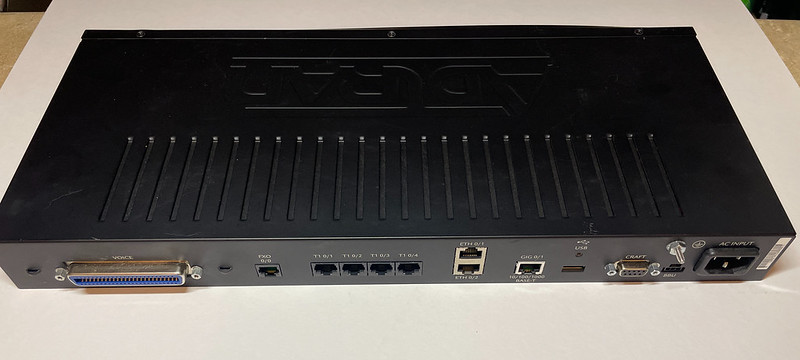
Adtran Atlas 550

Next up was my Adtran Atlas 550. Here the system would just lose its config when the unit was powered off, such a number/trunk/port settings, and IP addresses. A bummer after tediously setting them up. Fortunately the system supports downloading and uploading the system config to a TFTP  server, so I was able to save my working configuration before replacing the RTC chip. Main menu -> System Utility -> Config Transfer -> Transfer Method TFTP, IP address, filename -> Save Config Remotely. Similarly on this screen is Load and Use Config to download a config from a TFTP server.

Adtran Atlas 550 with old and new DS14287 RTC

The system uses a Dallas DS14287, which is slightly different than most Dallas RTC replacements out there. I found these DS14287 replacements on eBay and gave them a try.

The Atlas was a little bit of work because the motherboard needs to be taken out of the chassis and there are various clips and plastic light guides in the way. The power supply is also built on the same PCB. Between the RTC and the metal carrier that cards slide into, there’s about a 1/4″ – 3/8″ clearance:

Clearance between top of RTC chip and chassis

Of note when trying to take the motherboard out, over to the side of the power input part of the board, there’s a metal rail along the edge of the chassis that have these heatsink clips that clip over several voltage regulators. These just slip off.

Heatsink clips

Also remember to remove the DC terminal block if they’re plugged in:

Terminal block holding motherboard in

After this there’s just a set of screws holding the motherboard to the case. Also be aware of the large capacitors when taking the board out, to make sure not to accidentally grab one or short it on the chassis.

This one was mostly easy to get the old Dallas chip out, I recall just one or two pins being stubborn because they were on a ground plane.

Removed old Dallas DS14287

Next was putting in a 24-pin socket:

And then finally putting in the new Dallas DS14287 chip:

Socketed Dallas DS14287 replacement

After putting everything back together, the unit just powered right up without any issue. It retained my config after a few power-offs and seems to work well.

Old ftp site to modern support site mapping

The Internet Archive is invaluable when working with old hardware or software when you need to go look at old version of a website to find manuals, drivers, or general info. Unfortunately a great number of files lived on FTP servers because the web wasn’t really up to hosting them in the 1990s, and many of the web crawlers did not archive the contents of FTP servers. I frequently run into cases where an archive URL will link to a ftp:// URL to a long defunct FTP server and that’s usually a dead end. This usually leads to a lot of very crafty Google searches to try to find the filename that was linked. Mayyyybe there was somebody else out there that mirrored all or part of the FTP site and their index is discoverable on the web.

Sometimes the FTP server is gone, but the present day web servers still have the files somewhere. This is the case for US Robotics I’ve found when I need to look at old Courier or I-modem drivers and firmware that were only on ftp.usr.com (pre-1997 acquisition) or consumerftp.3com.com (post acquisition), with a little fishing the old files are still there on the modern support.usr.com website.

(If somebody from USR is reading this, please please don’t delete these old files for the sake of preservation! Even better make them more discoverable somehow).

For example, a copy the Courier ISDN Modem file library index and descriptions can be found on archive.org at: https://web.archive.org/web/20001002222652/http://consumer.3com.com/courieri/filelibrary/index.html

Links to say, the Courier I-Modem internal firmware links to this ftp://consumerftp.3com.com url which was not archived.

https://web.archive.org/web/20001002222652/ftp://consumerftp.3com.com/usr/dl14/ie020104.zip

Or the V.90 flash ROM code for the Courier V.Everything 25 MHz:

https://web.archive.org/web/20000823182315/ftp://consumerftp.3com.com/usr/dl05/usrxmd25.zip

Another example the Sportster 33.6 manual from the pre-3com acquisition website with links to ftp://ftp.usr.com:

https://web.archive.org/web/19970416102912/ftp://ftp.usr.com/usr/dl07/sp336man.zip

However note the usr/dl14 and usr/dl05 part of the URL. These file areas are still available on the support.usr.com website today:

https://support.usr.com/support/usr/dl05/usrxmd25.zip

Take the old file area path such as usr/dl05, and append it to https://support.usr.com/support/.  The majority of the time you’ll be able to get the old file. There’s no modern index that I’m aware of that shows all the files available, so you’ll need to find the download area directory name and filename from some other method such as archive.org or old file listings.

I figured this out recently when spending a bunch of time combing over the old and new support websites for manuals. Neat, huh?

Also shout out to Logitech for still running an FTP server at ftp.logitech.com. Want drivers for your old 1996 Quickcam eyeball camera? They’re there!

Cisco VIC-2BRI-NT/TE and VIC2-2BRI-NT/TE nested inside carriers

TL;DR: I complain about my failings and show off pictures and log files. Later some gradual understanding of ISDN and why this probably won’t work with my particular version of the Courier I-modem with a U interface. Turns out U is electronically incompatible with S/T.

In my telcom fiddlings to get a 56k dial-up modem to work I explored an Adtran Atlas 550 as an ISDN switch along with a USR Courier I-modem, which worked great. The original project however is still stalled out, and that is using a Cisco router with a VIC-2BRI-NT/TE or VIC2-2BRI-NT/TE card and “isdn protocol-emulate network” to provide network-side BRI service to the Courier I-modem as a cheaper alternative to an Atlas or other ISDN hardware.

The Atlas configuration at least validated the I-modem actually worked and would terminate a V.90 56k dial-up call.

Also I am barely literate in ISDN, I only have a scant understanding of U, NT, TE, NT1, S/T. I need a flowchart, I could be trying to put square pegs in round holes.

According to this Cisco TechNote “Configuring Network Side ISDN BRI Voice Interface Cards“, the VIC-2BRI card comes a NT version that sounds like it should act as a network interface. I wanted to see if I could bring up a BRI between a Cisco 26xx and the I-modem, configure a voice-peer, and send a “voice” (dial-up modem) call over it from a VoIP endpoint. I don’t know if this is really possible, but that hasn’t stopped me from trying. I have seen other people mention this configuration but I don’t think I’ve seen any that have succeeded, or if they have they are short on the details.

The problem first of all was finding one of the damn VIC BRI cards that supported network mode. These seem to have been only used in Europe and were released in the 2000s. When I was looking last year the only places on eBay I could find selling them for a decent price were in the UK, Turkey, and Greece, so they took weeks to arrive. There are many VIC-2BRI-S/T cards out there, but they’re not what we want.

VIC-2BRI-NT/TE and VIC2-2BRI-NT/TE – how could they possibly be confused, also the S/T markings

There is also the confusing product numbers: “VIC-2BRI-NT/TE” and the newer “VIC2-2BRI-NT/TE”. This is important because each one has different requirements for the NM voice carriers, which in turn affects which Cisco router chassis it works in. It doesn’t help that some people transpose the 2 as a non-existent “VIC2-BRI” instead of “VIC-2BRI” which further confused the parts search. I’m pretty sure I did this myself a few times.

I mis-read the support docs no less than three times thinking I had ordered everything for a configuration to test out in an old Cisco 2600 I had (used for my ISP!), and realized I got an VIC2 that only worked in a 2600XM. Then I thought I bought a NM that worked in a 2600XM and it only worked in a regular 2600. Then after careful searching on eBay I thought I was buying a VIC2-2BRI, the photograph very clearly showed a VIC2, and a old VIC-2BRI showed up weeks later!

The VIC2-2BRI-NT/TE is supported on NM-HD-1V, NM-HD-2V, and NM-HD-2VE, where as the VIC-2BRI-S/T-TE and VIC-2BRI-NT/TE are currently supported on NM-1V/2V.


Months later after ordering all the right parts finally, I wound up with two full hardware configurations: a Cisco 2600 + NM-2V + VIC-2BRI-NT, and a Cisco 2600XM + NM-HD-2V + VIC2-2BRI-NT/TE.

Courier I-modem configuration

The back of the I-modem has a port labeled “U”, which according to the manual has an integrated NT-1.

Model 1 – U-Interface

Cisco 2600 XM configuration

In my latest test, this is what I had configured on the 2600XM for the VIC2-2BRI-NT/TE:

!
interface BRI1/0
 no ip address
 isdn switch-type basic-ni
 isdn timer T309 30000
 isdn protocol-emulate network
 isdn point-to-point-setup
 isdn layer1-emulate network
 isdn incoming-voice voice
 isdn supp-service name calling
 isdn skipsend-idverify
 line-power
!

I had to use National ISDN type for the emulation. The 2BRI cards only supports certain ISDN switch types in network-emulate mode:

vintage-gw5(config-if)#isdn switch-type ?
  basic-1tr6    1TR6 switch type for Germany
  basic-5ess    Lucent 5ESS switch type for the U.S.
  basic-dms100  Northern Telecom DMS-100 switch type for the U.S.
  basic-net3    NET3 switch type for UK, Europe, Asia and Australia
  basic-ni      National ISDN switch type for the U.S.
  basic-qsig    QSIG switch type
  basic-ts013   TS013 switch type for Australia (obsolete)
  ntt           NTT switch type for Japan
  vn3           VN3 and VN4 switch types for France

The Cisco is lies when it says it supports 5ESS and DMS100 emulation:

vintage-gw5(config-if)#isdn switch-type basic-5ess
Interface must be shutdown before configuring switchtype
vintage-gw5(config-if)#shut

vintage-gw5(config-if)#isdn switch-type basic-5ess
%ISDN 8, Network side supported only for primary-5ess, primary-4ess, primary-dms100, primary-net5, primary-ni, primary-qsig, basic-net3, basic-qsig, primary-ntt.
protocol-emulate network should be removed

vintage-gw5(config-if)#isdn switch-type basic-dms100
%ISDN 8, Network side supported only for primary-5ess, primary-4ess, primary-dms100, primary-net5, primary-ni, primary-qsig, basic-net3, basic-qsig, primary-ntt.
protocol-emulate network should be removed
vintage-gw5(config-if)#isdn switch-type basic-ni
vintage-gw5(config-if)#
vintage-gw5(config-if)#isdn switch-type primary-5ess
                                        ^
% Invalid input detected at '^' marker.

vintage-gw5(config-if)#isdn switch-type primary-dms100
                                        ^
% Invalid input detected at '^' marker.

vintage-gw5(config-if)#

and the Courier I-modem only supports these switch types:

*W=n      ISDN Switch Protocol Type
            n=0 AT&T 5ESS Custom
            n=1 Northern Telecom DMS-100
            n=2 US National ISDN-1
            n=3 US National ISDN-2

Leaving me with only National to even attempt.

My understanding from the “Configuring Network Side ISDN” document was that I would need to wire up a BRI crossover cable to run between the Cisco 2600 and the I-modem. When I did that, I got no sort of response from the Cisco nor the I-modem. However when I wired up just a plain straight-through cable, I could see all sorts of activity on “debug isdn events” whenever I rebooted the I-modem or issued an ATZ! to soft reset it. The I-modem shows the physical link as “Inactive”.

The debug log on the Cisco would say this:

May 16 17:39:39.398: ISDN BR1/0 EVENT: service_queue_from_physical_layer: Recvd L1 prim ISDN_PH_ACT_IND state is IF_DOWN
May 16 17:39:39.398: ISDN BR1/0 EVENT: isdn_sw_cstate: State = 4, Old State = 0
May 16 17:39:39.450: %LINK-3-UPDOWN: Interface BRI1/0, changed state to up
May 16 17:39:40.836: BRI1/0: !!!CHECK CLOCK SOURCE!!! and the interface is disabled due to Lost framing count of 41 in the past 12 msec.
May 16 17:39:40.844: ISDN BR1/0 EVENT: service_queue_from_physical_layer: Recvd L1 prim ISDN_PH_DEACT_IND state is IF_ACTIVE
May 16 17:39:40.844: ISDN BR1/0 EVENT: isdn_sw_cstate: State = 0, Old State = 4
May 16 17:39:40.848: ISDN BR1/0 Q931: L3_ShutDown: Shutting down ISDN Layer 3
May 16 17:39:40.896: %LINK-3-UPDOWN: Interface BRI1/0, changed state to down

which sounds like I need to provide clock from the Cisco side, but there doesn’t seem to be a way to enable it:

vintage-gw5(config)#network-clock-select ?
  <1-2>  priority

vintage-gw5(config)#
vintage-gw5(config)#network-clock-participate wic 0
 WIC slot is empty or does not support clock participate
vintage-gw5(config)#

This is as far as I’ve got. I haven’t messed with it anymore, I don’t know if I need to re-visit a BRI crossover cable, go dust off the 2600 with the older VIC-2BRI card and play with it, or if there’s other config options I’m missing. Or do I need an S/T I-modem, which I’ve never ever seen?

Or the Cisco VIC provides an NT the same as the I-modem provides an NT, so this means I’m trying to connect two NT back to back, and still need something to provide a U.

Of particular note I’m running a 12.4 ADVENTERPRISE image on the 2600XM for some X.25 work, which is way newer than the 12.2(15)ZJ and 12.3(4)T listed in Platform Support matrix in “Understanding ISDN BRI Voice Interface Cards“. The fact my VICs still show up in “show diag” and can still be configured leads me to believe there’s still support for the cards in 12.4, but who knows if Cisco only supports exactly 12.3(4)T.

GPT 4o gave me some dubious hallucinated commands on the I-modem that didn’t exist, and suggested removing “network-emulate” from the Cisco which kind of defeats the whole point. It also suggested the VIC provides clocking internally and there isn’t an option to enable/disable it, which might be true.

12 AM later:

If I’m understanding things correctly:

The I-modem has an integrated NT-1 and it expects to be using a U interface to an LT at a telco CO. It finally dawned on me to think of the “U” to really mean “U cable” instead of something at the CO acting as a “U interface”. This U cable speaks 2B1Q.

I-modem -> U (2B1Q coding) -> Line Termination (LT)

The Cisco VIC[2]-2BRI-NT/TE can also act as an NT and thus also expects to be using a U interface to connect to an LT.

Cisco NT mode -> U -> LT

The “U-interface” is an RJ-45/8P8C connector, but only pins 4-5 in the center carry a signal and polarity doesn’t matter, thus a crossover does nothing here. And in fact if trying to use an BRI S crossover cable, the two pins of the U are definitely not connected to anything. The U can provide -48 VDC power on pins 7 and 8.

I was getting confused when I kept seeing things say “U is two wire/conductor” when my I-modem very much has a RJ-45 out the back and came with an 8 conductor cable.

“S” is also a RJ-45/8p8c connector, but it actually has TX/RX pairs. Here a BRI crossover cable can be used to connect two somethings together.

Thing -> S (AMI coding / I.430) -> NT1 -> U (2B1Q coding) -> LT

The Adtran Atlas 550 Quad BRI card I have in my understanding of the data sheet is operating in LT mode, which lets things expecting U interfaces, such as the I-modem to connect to it.

In conclusion it sounds like my Courier I-modem that wants a U interface won’t work with the VIC. However, if I had a European model that uses S/T it might? Or if I had something to replace the Cisco that would emulate a LT interface.

Documentation followed

Replaced LH1056 solid state relay

TL;DR: replaced LH1056 solid state relay / optocoupler at U3

One of the USR Courier HST modems I purchased recently had a peculiar problem that if I plugged the phone line into the “wall” jack of the modem it returned NO DIALTONE when I tried to dial something, yet I was able to dial something if I plugged it into the “phone” jack. After a while I realized from looking at the ATA that when plugged into the “phone” jack it was immediately taking the line off-hook, even if the power was turned off!

This sounded like a relay was stuck open or something was commanding a relay open somewhere so I went hunting for it. I had no idea what a relay looked like on a PCB so I hooked a multimeter to one of the phone line terminals and went poking around the board around the phone jacks to see what was connected to it. This eventually lead me to a pair of chips labeled LH1056, which the datasheet told me was a solid state relay. The datasheet told me pins 1 and 2, 4 and 6 were connected so I checked these on the board. On one I noticed between 4 and 6 I had nothing, but on the other between 4 and 6 I had continuity. The datasheet said these were normally open relays, so that sounded like my culprit.

LH1056 were apparently long obsolete, I didn’t put any effort into trying to find a replacement and just ordered a few off eBay. They finally arrived today so I got to desoldering the old relay and putting on a new one. Just like that, problem solved!  The modem now dialed, taking the line off-hook and on-hook as expected.

Now I have enough spare relays to fix several more modems, so if you encounter this problem I guess hit me up!

LH1056 spares

Replacement 24 V DC power supply for I-modem

TL;DR: Original US Robotics I-modem power adapter is extremely rare. I cut mine open to document it. Original adapter provides 20 V AC (1500 mA capacity) across pins 3-4 of mini-DIN connector, no other voltages. Substituting a $15 24 V DC power adapter seems to work just fine.

The US Robotics Courier I-Modem seems to be a unique beast in that it’s a combination ISDN terminal adapter and has a built in V.34 (upgradable to x2/V.90) modem.

Aside from normal 64K/128K data ISDN BRI service, the other unique and import part is the all digital connection which allows the modem to terminate a legit 56k modem connection, which requires one direction to be PCM. Using my Adtran Atlas 550 as an ISDN switch along with its analog FXS ports, I can connect a v.90 modem to an FXS port, the Courier I-modem to a BRI interface, and make a real V.90 call across it! I regularly get 53,333 BPS and the occasional 54,666 BPS.

The problem is the I-modems are rare and the power adapters for them are even more rare because people always split them up. They take a 6-pin mini-DIN power plug and there’s no reference online that I could find as to what kind of power they require, until now. It was hard enough even finding a silly photograph of the AC adapter with a visible part number to even get started. I got very lucky and found a pair of modems and one had the A/C power adapter. The transformer I have is made by Ault Inc, T57201500C010G, output 20 V AC, 1500 mA, US Robotics part number (P/N) 1.015.1229B. This is quite a beefy transformer, 3″ long and weighs a pound or two.

I found a couple of dubious looking places such as poweradapter dot co and uspoweradapter dot com that listed the USR part number, but when I inquired or tried to place an order for “in stock” it turned out none of them really had one in stock.  Ault T57201500C020G and P/N 1.015.1317 was another similar USR power adapter I found on parts lists that may also be an later generation or alternative model. I really wish I could find an old Ault catalog to explain their part numbers!

Original US Robotics Courier I-modem power adapter with mini-DIN plug

6-pin male mini DIN power plug

At first it was not clear to me if the factory power adapter only provided 20 volts AC, or if it also provided other voltages on the pins.

On the main board of the modem, there’s a group of four diodes right behind the power switch, which tells me it probably takes A/C and rectifies to DC for the components.

Power input of I-modem


Cutting open the transformer housing revealed a few things:

Courier I-modem power adapter inside

Inside is an isolation transformer and a small PCB with a fuse and diode (marked with 1.5 or 15?) connected to the secondary windings. There are four wires in the cable going to the DIN plug, red, white, green, black. Green is connected to the frame of the transformer, black is connected to earth ground, and these are only connected to the outer metal shell of the DIN plug, they’re not connected to any of the pins inside. White is connected to a “3” on the PCB and also to pin #3 on the DIN plug, and red is connected to a “4” on the PCB and also to pin #4 on the DIN plug. These do not have continuity to the other side of the transformer.

Mini DIN-6 pinout

Somebody suggested to me that the diode may be acting as a rectifier to provide only a half-cycle waveform as sort of a cheap way to get DC-ish power. I thought maybe this was why the power transformer was so hard to find, this weird half-wave output thing. But also does this mean I could just feed DC power into the modem?

I wanted to see the waveform of the power output before I got too deep into trying to find or craft an exact replacement. Being a new oscilloscope user I had read all the warnings about connecting probes to an AC transformer and AC mains and put it off for a while. Finally after careful probing with a multimeter I was pretty sure I could hook things up safely so gave it a shot, connecting my probe to pins #3 and #4 on the DIN connector:

Power supply output

I was expecting to see some sort of flat rippled half-cycle thing, but no, there’s a full normal AC waveform there, peaking out around 32 V and 22 V RMS. So the AC adapter really is outputting normal AC power.

Running a photo of the transformer through ChatGPT suggested the diode and fuse inside the transformer housing were wired across hot/neutral as a form of circuit protection. Through some other legit-looking math, it suggested 24 – 27 V DC could be an acceptable substitute, which sounded right to me.

It was suggested today on the The Serial Port Discord that this could be a transient-voltage-suppression diode to protect the modem from over-voltage.

I wanted to see if the thing would run on 24 VDC, so I ordered a power adapter to try it out. I’m pretty sure the thing will run on another plain 20 V AC power adapter, but ones with AC output are slightly harder to find and/or require some buck adapters to get the right voltage (such as a 24 V AC Nest/Ring doorbell transformer). There are other US Robotics 20 V AC-AC adapters but their rated capacities top out around 500 mA, not enough for the I-modem.

Powering up

The new DIN-6 plugs I received from Amazon had square-ish pins so they didn’t fit, so I just chopped off some short wires to shove in the modem power socket in the meantime. I hit the switch and it all came to life!

DC adapter to “outermost” pins 3-4

Responding to AT commands was a good start, I started testing through various ATI commands and all seemed to be working:

ATI4 commands with new power adapter

ATI12 ISDN status

It had already brought up ISDN with my Adtran Atlas, didn’t seem to have any issues there.

I tested writing to NVRAM by writing AT&B1&W, resetting the modem with ATZ, and then verified it was there, then did a AT*P2 to change one of the ISDN numbers, issued an ATZ! to reset it and verified the new value came back. I’ve seen this sort of thing fail, writing configuration to NVRAM, on other devices when they were fed with DC when they were expecting AC voltage.

Pro tip: when configuring ISDN it’s really nice that on the ATI12 screen they list all the *-commands to change the different settings so you don’t have to go digging for the manual.

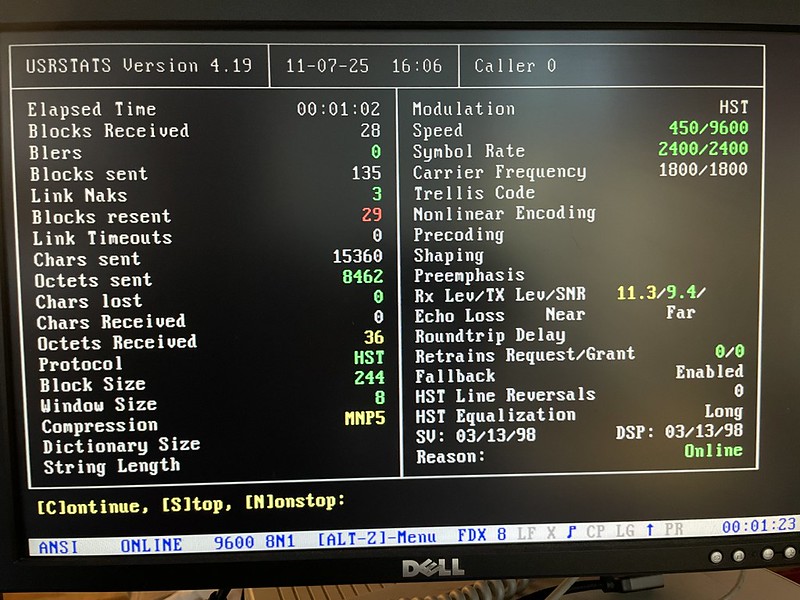
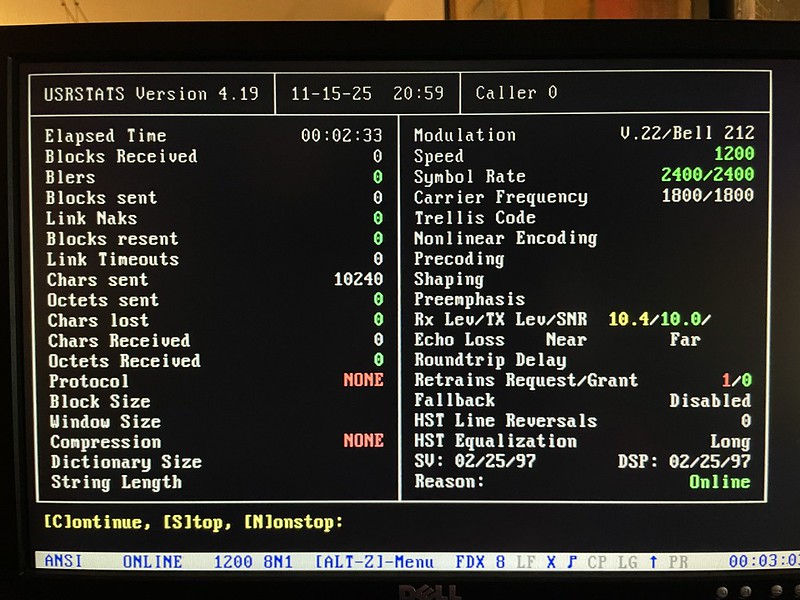
Next was to bring up a modem call to see if that worked, and it did!  Connected to it at 53,333 BPS using V.90.

USRSTATS on V.90 connection

I downloaded a couple of megabyte sized files across it, and it all seemed to work.

I tested this 24 V DC power adapter on both Courier I-modems I have and both seem to work as expected. I’ll continue to test with it, but so far it seems a DC adapter will work.

24 V DC adapter with new mini-DIN plug

V.90 call made across Adtran Atlas 550

Model notes

I’ve pointed this out on my modem teardown collection and I’ll call it out here too. There are at least two different external revisions of the US Robotics Courier I-modem:

Version 1: US Robotics Courier I-modem with ISDN/V.34

One is the “Courier I-modem with ISDN/V.34“. FCC ID CJE-0313, P/N 1.020.195-B. The one I have has a green/gold PCB with board P/N 1.012.0313-E, copyright 1995. It has an Intel i386 EX, a TI DSP, and a Sipex SP503CF IC chip handling RS/EIA-232 and V.35 serial comms.

The bottom of the unit has 12 DIP switches for controlling AT commands, boot settings, and whether or not it speaks V.35 or EIA-232 on the serial port.

ATI3 reports “US Robotics Courier I-modem with ISDN/V.34”. ATI7 reports 20.16 MHz processor, 768k EPROM, 256k RAM.

Leaky cap warning: the 1995 board had two 47 uF / 63 V electrolytic capacitors, C92 and C140, that had started to leak onto the PCB. There was some minor trace corrosion around C92 that I had to re-tin, other caps looked ok. C140 in particular was difficult to remove because it was in the middle of a huge ground plane, so this is why I didn’t bother recapping the whole board. If you get one I recommend opening it open to take a look at all the capacitors.


Version 2: US Robotics Courier I-modem ISDN with V.Everything

The other is the “Courier I-modem ISDN with V.Everything“. Also FCC ID CJE-0313, P/N 1.020.0396-00, model number 0698-1. This one is more of what I call a green/dark green PCB/mask with board P/N 1.012.0511-B, copyright 1997. It still has the Intel i386 EX, but it’s not clear if the TI DSP is still there or was replaced with another chip. There’s a metal can on one chip that I haven’t lifted up to see what it’s hiding. Instead of the Sipex for serial, it has more traditional MC1488D AND MC1489AD line drivers. Presumably because it only supports EIA-232 and not V.35.

The bottom of the unit only has 4 DIP switches for controlling the AT command set and boot settings.

ATI3 still reports “USRobotics Courier I-modem with ISDN/V.34“, ATI7 20.12 MHz processor, 768k EPROM, 256k RAM. This one is upgraded to x2/V.90, ATI7 reports HST,V32bis,Terbo,V.FC,V34+,x2,V90 with a supervisor rev of 2.7.6 and DSP rev 3.0.4.

I haven’t tried but I’m assuming the boards are probably functionally identical and they can both be upgraded to V.90.

Edit: 5/5: I was able to update my first gen “with ISDN/V.34” to 2.7.6 firmware and it now supports x2 and V.90.

Replacement power for 14.4k HST

After proving my HST worked in my previous post with an ATX power supply, I went looking for triple-output power adapters (5 VDC, 12 VDC, -12 VDC). I finally found something that works, an ELPAC WM113TT AC-DC power adapter along with a new female DIN 5 connector.

21-Jul-2025: update to the update below, may have found an original power adapter on eBay

There were a few power supply ideas on eBay, the first I found was the Mean Well RT-65B for about $21-$27. This would have worked, but it’s only in a metal cage with exposed contacts so I’d need to get a case for it. It’s also well over powered on the 5 and 12 volt outputs at 5 A and 2.8 A, respectively.

Then I started searching around on Digikey under “AC DC Desktop Wall Power Adapters”, and found matches under output “5 VDC, 12 VDC, -12 VDC” with DIN 5 connectors. Maybe I’d get lucky and USR used an COTS product. Here’s where I found the WM113 series of power adapters from Inventus Power. They were all marked as obsolete, but figured they’d show up on eBay if they were. The DIN plug was the wrong gender, but I was ready to chop it off and solder on a new DIN connector if that’s what it took.

I ran across somebody selling ELPAC WM113TT power adapters for $15-$20, still had the triple output and a DIN 5 connector. I found a datasheet for the WM113 or the WM113TT with the DIN output pinout, what I was looking at had exactly the same voltages on the pins I needed (or so I remember) and thought this was almost perfect if there was a way to swap genders.

DIN 5 female-female coupler, wound up not using

On Amazon I found a DIN 5 female-female coupler, and thought this would be perfect if the power supply had the right pinout. I got these before I got the power supply, cut off part of the plastic and found it fit into the back of the Courier HST just fine.

However when I finally got the Elpac WM113TT, it did not work as I expected when I plugged it in.

Elpac WM113TT pinout

The pinout I had was completely different than the datasheet I had saw, so I had to put on a new DIN connector. Above on the right shows what I used on the new DIN female connector.

Completed power setup

Hooked it all up and it worked perfectly!  The WM113TT is basically a literal brick of a power supply. For only providing < 1 A on each of the outputs, the thing is nearly 5″ long and weighs a couple of pounds. At least the input and output cables are long so it can be placed out of the way.

21-Jul-2025: I think this eBay auction (archive.org) is likely the original AC adapter for this particular HST. The photos are a goldmine, it has the pinout and voltages written right there on the back of the unit! It’s a US Robotics branded “Multi Products Intl'” model WA512750/27, female DIN-5 connector, input voltage of 120 V, output voltages of +5 VDC at 750mA, +12 VDC at 200 mA, -12 VDC at 200mA. This is the same pinout I came up with (sans common), nice to see it verified. At $90 that’s a very expensive power adapter, but there it is. There’s a “1889” stamped into the black plastic case, I’m wondering if this is a 18th week / 1989 date code which would line up when the HST came out.

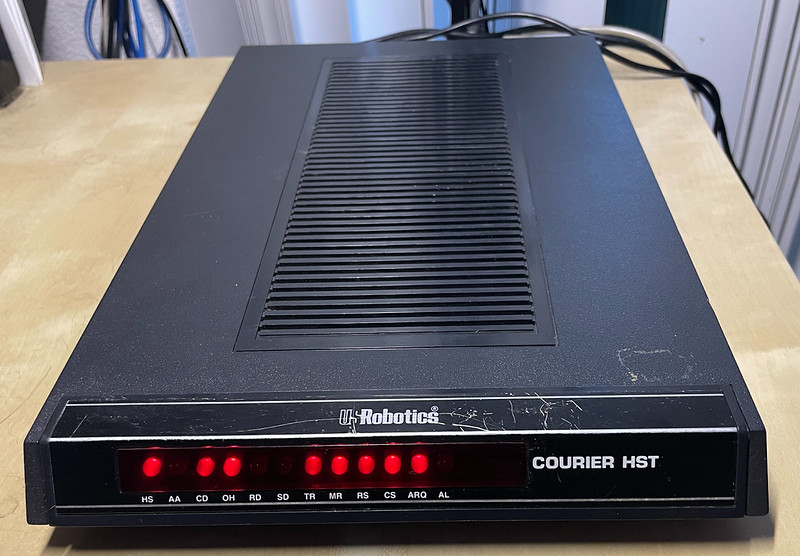
I picked up a couple of “widebody” USR Courier HST modems and have been working through documenting power adapters for them and sorting out what goes with what. I figured out almost all Courier and HST models have different power supplies and voltage requirements. I’ve been tracking down manuals and cross-referencing the FCC IDs in the manuals vs what’s on the modem label to tell what goes with what.

USR was certainly fond of using DIN power connectors back then, different orientations, different sizes, and different voltages. This page will likely change over time as I figure out more.

[my HST 14400 pinout below]

US ROBOTICS HST (9600 HST)

These seem to have come out in 1986-1987, one of the first “widebody” HST modems. These have what I’m referring to the “black/green manual (vtda.org)

  • “widebody”
  • FCC ID CJE794FAST, FCC REG CJE794-11323-DM-E
  • Modem chassis P/N 1.014.299 Rev B
  • S/N starts with 0061-xxxxxxxx
  • DIN 6-pin female power connector
  • Manual: “US Robotics Courier HST Modem  User’s Manual”
  • Power Adapter (from manual): Supply voltage: 115 VAC, 60 Hz, 16 VAC Output

I don’t have one of these so I don’t know the exact pinout of the DIN connector yet

Update 7-Nov-2025: I have one of these now, it’s indeed 16 VAC, the outermost pins 1 and 3 are hot, pin 2 at middle is common

COURIER HST (14.4k HST)

This is the pair I have, one appears to have come out in 1988 and the other in 1989. I have recently scanned this manual and calling it the “black/red manual (archive.org)

  • “widebody”, may have also been branded “COURIER HST dual standard” on the front?
  • Supports standard V.32 modulation, and 14.4k with HST
  • FCC ID: CJE794-0093, FCC REG CJE794-2748-MD-E
  • Modem chassis P/N 1.014.263 Rev B (1988 version), P/N 1.014.323 Rev A (1989 version)
  • DIN 5-pin male power connector, use MAK 50S
  • Manual: “US Robotics Courier High Speed Modems  User’s Manual” 1.015.282
  • Power Adapter (from manual): Supply voltage: 120 VAC RMS +/- 10%, 60 Hz, + 5 VDC @ 750 MA, +/- 12 VDC @ 200 MA

So this one is tri-voltage and not just AC in. I have worked out the pinout for this and will show below.

COURIER HST dual standard with V.32 bis and ASL (16.8k HST)

I believe this is the last “widebody” but not sure, or the manual covers both “widebody” and “narrowbody” models. Only seen one photo, don’t have FCC ID or anything else

  • maybe: “widebody”
  • maybe: natively support standard V.32 bis / 14.4k, and first to support 16.8k with HST
  • maybe FCC ID: CJE-0151-147, FCC REG CJEUSA-73130-FA-E
  • maybe Manual “US Robotics Courier High Speed Modems  User’s Manual” (1992) 1.015.544
  • Power Adapter info not listed in manual

COURIER HST with ASL (16.8k HST?)

3/2026: Somebody showed this to me on eBay, with pictures. It’s a “narrowbody” with the same FCC ID as the one I saw mentioned in manual bug different FCC registration code.

  • Chassis says copyright 1991
  • FCC ID: CJE-0151-47, FCC REG CJE794-72748-MD-E
  • Modem chassis P/N 1.014.030 Rev A
  • 4-pole mini DIN power connector, power adapter P/N not available

COURIER HST Dual Standard with Fax and ASL (16.8k HST ?)

  • “narrowbody”, 1993
  • FCC ID: CJE-0151-234, FCC REG CJEUSA-73130-FA-E   (shares same registration as the widebody HST DS, but different FCC ID?)
  • Modem chassis P/N 1.014.425-C
  • Small DIN connector?

COURIER Dual Standard V.34 Fax with V.32 bis

This may still be HST capable but doesn’t carry HST branding anymore?

  • “narrowbody”
  • maybe FCC ID: CJE-0263, FCC REG CJEUSA-73130-FA-E
  • maybe P/N 1.020.091-B

My Courier HST power pinout

Courier HST 0093 and plug

For what I’m calling the “second generation” widebody, FCC ID CJE794-0093, model 0093, with 14.4k HST. I used the voltages from the manual and then probed the voltages at the 1488 and 1489 serial chips to work out what was what, seems to be right. TIL the pin numbering of a DIN connector is all over the place, it’s not in order.

[4/16: See this follow-up post where I find a more suitable AC-DC power adapter]

Hirschmann MAK 50 S, female DIN 41 524  / 930172-317 connector

  • Pin 1: GND
  • Pin 2: GND
  • Pin 3: 5 VDC
  • Pin 4: -12 VDC
  • Pin 5: 12 VDC

Power pinout notes

I didn’t have the factory power adapter nor something better that could provide 5 VDC, 12 VDC, and -12 VDC so I improvised from an ATX power supply using the 24-pin ATX and a drive molex connector to test.

Here blue is -12 VDC from the main ATX 24-pin connector; yellow is +12 VDC, red is +5 VDC, and black is ground from a drive Molex connector:

Molex to DIN 5 power adapter

Firing it up to test:

Testing my Courier HST with an ATX power supply

Success!

Getting firmware info from the Courier HST

Requisite action shot dialed up to the BBS:

Courier HST 14400 in action

BBS USRSTATS for the HST call

« Newer Posts - Older Posts »